> ## Documentation Index
> Fetch the complete documentation index at: https://docs.resolve.ai/llms.txt
> Use this file to discover all available pages before exploring further.
# App for MS Teams (Beta)
The Resolve app for Microsoft Teams is currently in beta. It supports chat interactions, incident group channels, and proactive alert investigations.
### Supported Features
| Feature | Status |
| :------------------------------------------------------------------------------------------------------------------------------------------------------------ | :------------- |
| Chat — ask questions and query your observability data via `@ResolveAI` | ✅ Supported |
| Incident investigations — autonomous investigations in incident channels and group chats | ✅ Supported |
| Proactive alert investigations — automatically triggered when an alert fires | ✅ Supported |
| Change Events — use deploy, release, or infrastructure change posts/notifications from a channel as a source of change events during Resolve’s investigations | 🔜 Coming Soon |
### Prerequisites
If your organization restricts third-party Teams apps, a Microsoft Teams admin will need to allow the app and grant admin consent. Otherwise, end users can install Resolve AI themselves from the [Microsoft Teams app marketplace](https://marketplace.microsoft.com/en-us/product/WA200010030).
***
## Installation
#### Step 1: Install Resolve AI from the Teams app marketplace
Install the **Resolve AI** app from the [Microsoft Teams app marketplace](https://marketplace.microsoft.com/en-us/product/WA200010030).
#### Step 2: Grant admin consent
A Microsoft Teams admin must grant consent for the permissions Resolve AI requires:
1. Go to the [Teams Admin Center](https://admin.teams.microsoft.com)
2. Open the **Resolve AI** app details page under **Teams Apps**
3. Click **Grant admin consent**
If your organization restricts third-party apps, also allow **Resolve AI** under **Org-wide app settings** or **App permission policies**.
For details on the permissions required, see [App Permissions](/app-permissions).
#### Step 3: Add ResolveAI to a channel or group chat
You can add ResolveAI in two ways:
* **In a channel**: Click the **\[ + ]** icon to search for and add the **ResolveAI** app
* **In a group chat**: Click **Add agents and bots** and select **ResolveAI**
It may take a few minutes for the bot to appear.
#### Step 4: Configure the channel
When ResolveAI is added, it posts a welcome card with a **Configure Channel** button.
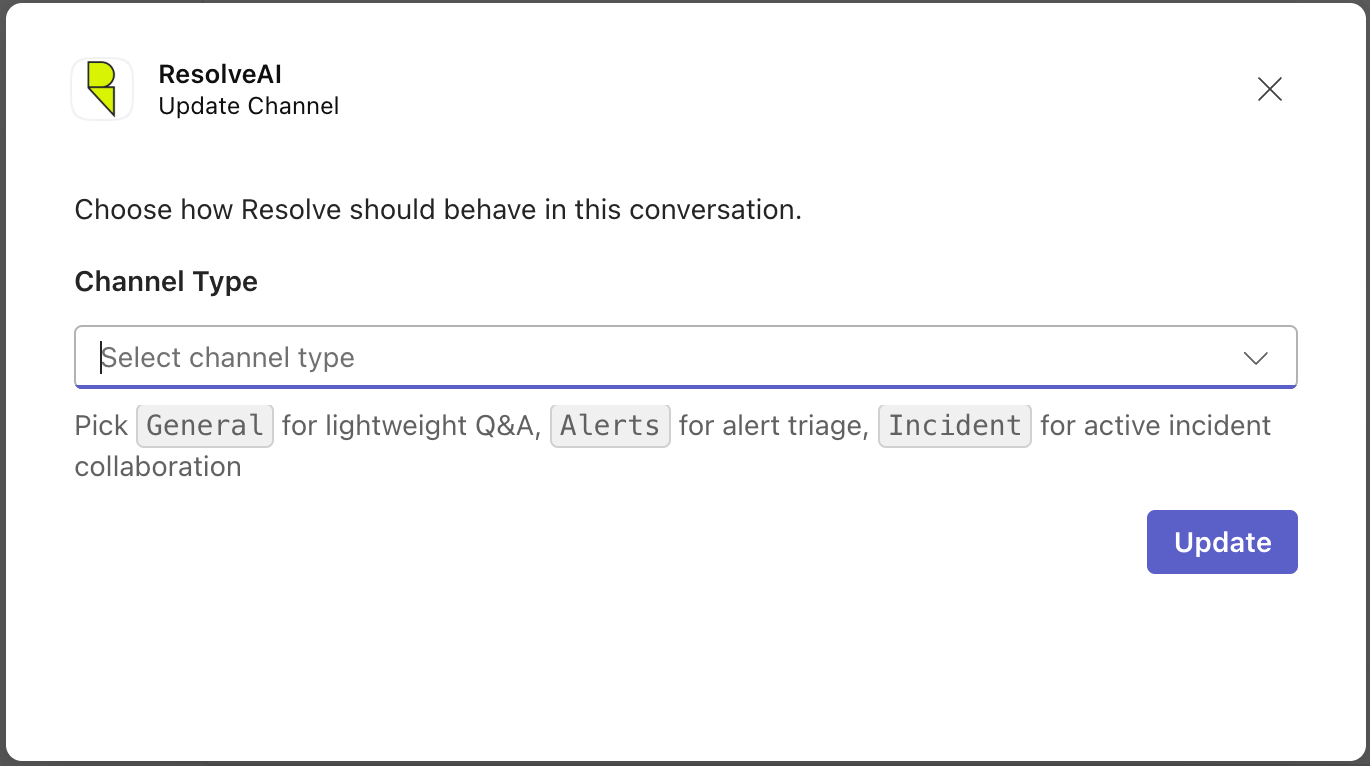
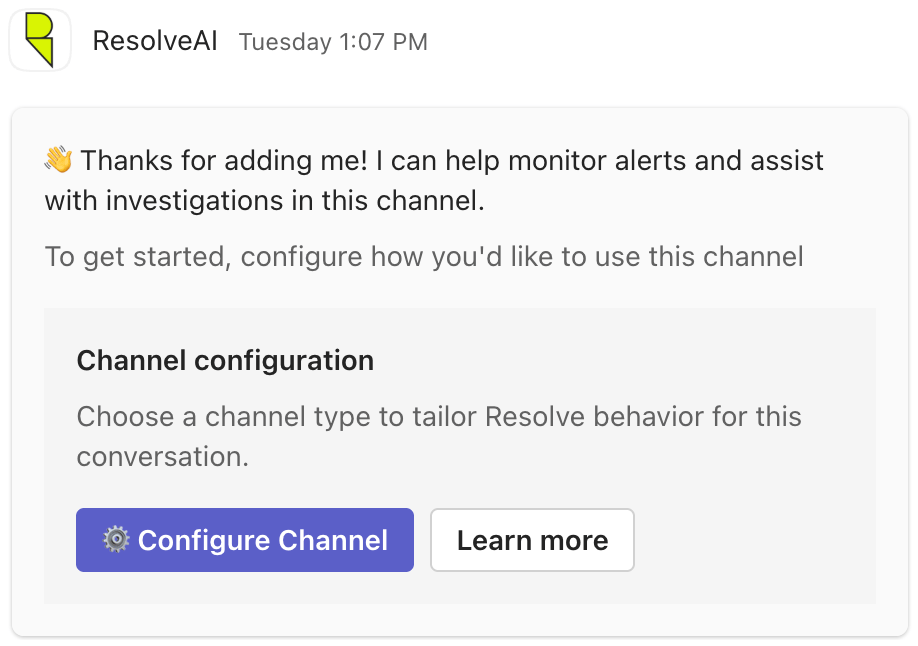 Click **Configure Channel** and pick a channel type to tailor Resolve's behavior for the conversation:
* **General** — @-mention Resolve to ask questions in any team channel
* **Alerts** — Resolve proactively investigates alerts posted to the channel and your team can @-mention Resolve to ask follow-up questions
* **Incident** — Resolve acts as an expert incident responder, investigating the incident using channel context and posting its findings
Click **Configure Channel** and pick a channel type to tailor Resolve's behavior for the conversation:
* **General** — @-mention Resolve to ask questions in any team channel
* **Alerts** — Resolve proactively investigates alerts posted to the channel and your team can @-mention Resolve to ask follow-up questions
* **Incident** — Resolve acts as an expert incident responder, investigating the incident using channel context and posting its findings
 #### Step 5: Authenticate with Resolve AI
The first time ResolveAI is added, you will be prompted to sign in to your Resolve AI organization to complete the setup.
#### Step 6: Chat with Resolve AI
Mention the bot in a channel and ask a question, for example:
> @ResolveAI get 5 error log lines from ``
> @ResolveAI list a few alerts from PagerDuty from the last 6 hours
***
## Commands
Issue commands by @-mentioning ResolveAI in any channel or group chat where it's installed. Commands take effect on the conversation where they're invoked (except `list`, which is MS Teams tenant-wide).
| Command | What it does |
| :----------------------- | :-------------------------------------------------------------------------------------------------------------- |
| `@ResolveAI configure` | Reopen the channel configuration card to change a channel's type (General / Alerts / Incident) |
| `@ResolveAI subscribe` | Subscribe the current channel to proactive alert responses from Resolve |
| `@ResolveAI unsubscribe` | Stop proactive alert responses from Resolve in the current channel. The bot still responds to direct @-mentions |
| `@ResolveAI list` | List all channels in your org currently subscribed to proactive alert investigations |
* A leading slash on these configurations works too! `@ResolveAI /subscribe` is treated the same as `@ResolveAI subscribe`.
* `subscribe` and `unsubscribe` are not available in channels configured as **Incident** channels, since they're tied to an active investigation. Use `@ResolveAI configure` to change the channel type before you subscribe or unsubscribe.
***
## Using Resolve in an Incident Channel or Bridge
For a full overview of how incident channels work, see [Incident Investigations](/incident-channels).
#### Step 5: Authenticate with Resolve AI
The first time ResolveAI is added, you will be prompted to sign in to your Resolve AI organization to complete the setup.
#### Step 6: Chat with Resolve AI
Mention the bot in a channel and ask a question, for example:
> @ResolveAI get 5 error log lines from ``
> @ResolveAI list a few alerts from PagerDuty from the last 6 hours
***
## Commands
Issue commands by @-mentioning ResolveAI in any channel or group chat where it's installed. Commands take effect on the conversation where they're invoked (except `list`, which is MS Teams tenant-wide).
| Command | What it does |
| :----------------------- | :-------------------------------------------------------------------------------------------------------------- |
| `@ResolveAI configure` | Reopen the channel configuration card to change a channel's type (General / Alerts / Incident) |
| `@ResolveAI subscribe` | Subscribe the current channel to proactive alert responses from Resolve |
| `@ResolveAI unsubscribe` | Stop proactive alert responses from Resolve in the current channel. The bot still responds to direct @-mentions |
| `@ResolveAI list` | List all channels in your org currently subscribed to proactive alert investigations |
* A leading slash on these configurations works too! `@ResolveAI /subscribe` is treated the same as `@ResolveAI subscribe`.
* `subscribe` and `unsubscribe` are not available in channels configured as **Incident** channels, since they're tied to an active investigation. Use `@ResolveAI configure` to change the channel type before you subscribe or unsubscribe.
***
## Using Resolve in an Incident Channel or Bridge
For a full overview of how incident channels work, see [Incident Investigations](/incident-channels).