> ## Documentation Index
> Fetch the complete documentation index at: https://docs.resolve.ai/llms.txt
> Use this file to discover all available pages before exploring further.
# App for Slack
Use the Resolve app for Slack to investigate alerts autonomously in your incident channels, and interactively ask questions of your observability data.
To get access to the ResolveAI application, [request a demo.](https://resolve.ai/book-a-demo)
## Connect Resolve to Slack
### 1. Install Application
1. Log in to the ResolveAI App at [app0.resolve.ai](https://app0.resolve.ai/)
2. Open the [App Integration](https://app0.resolve.ai/integrations/slack/connect) page
3. Add a **Name** and click **Install Application**
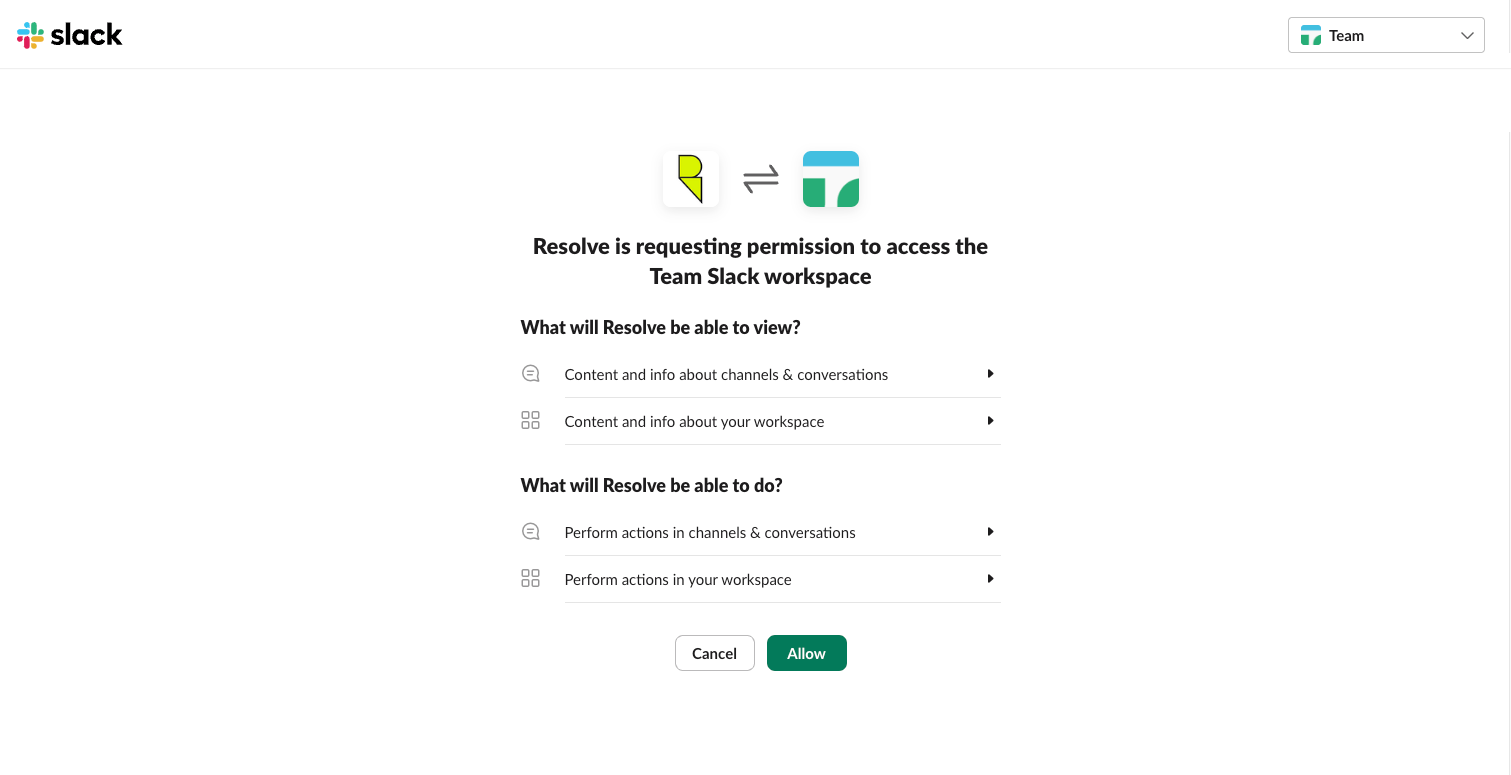
4. In Slack, pick your workspace in the top right corner and click **Allow**
### 2. Invite Resolve App
1. Open your alerts channel, ex. **#monitoring-alerts-webstore**
2. Type `/add` and click **Add apps to this channel**
3. Search **Resolve** and click **Add**
### 3. List the channels Resolve is monitoring
After adding the Resolve app to the channel, run the command `/resolve list`
The Resolve app for Slack requests these bot token scopes:
All scopes below are required except `channels:join`, which is optional and on by default. It lets Resolve join channels you ask it to via incident webhooks or Team settings.
If you decline it during install, you can add Resolve to channels manually or use another Slackbot to add it for you.
| **OAuth Scope** | **Description** |
| ------------------ | ------------------------------------------------------------------------------------------------------------------------------- |
| app\_mentions:read | View messages that directly mention @Resolve in conversations that the app is in |
| channels:history | View messages and other content in public channels that Resolve has been added to |
| channels:join | Join public channels Resolve is added to via an incident webhook or the Teams configuration page. Optional; enabled by default. |
| channels:read | View basic information about public channels in a workspace |
| chat:write | Send messages as @Resolve |
| commands | Add shortcuts and/or slash commands that people can use |
| files:read | View files shared in channels and conversations that Resolve has been added to |
| files:write | Upload, edit, and delete files as Resolve |
| groups:history | View messages and other content in private channels that Resolve has been added to |
| groups:read | View basic information about private channels that Resolve has been added to |
| im:history | View messages and other content in direct messages that Resolve has been added to |
| im:read | View basic information about direct messages that Resolve has been added to |
| im:write | Resolve can DM users |
| links:read | View Resolve URLs in messages |
| links:write | Show previews of Resolve URLs in messages |
| mpim:history | View messages and other content in group direct messages that Resolve has been added to |
| mpim:read | View basic information about group direct messages that Resolve has been added to |
| reactions:read | View emoji reactions and their associated content in channels and conversations that Resolve has been added to |
| reactions:write | Add and edit emoji reactions |
| users:read | View people in a workspace |
| users:read.email | View email addresses of people in a workspace |
It also requests one user token scope:
| **OAuth Scope** | **Description** |
| --------------- | ----------------------------------------------------------- |
| channels:read | View basic information about public channels in a workspace |
***
## How It Works
### Overview
ResolveAI brings intelligent, AI‑driven incident response into Slack. It connects to observability tools and infrastructure, like Datadog, Grafana, Kubernetes, GitHub, etc., and helps your team react faster, investigate more effectively, and shorten MTTR
### Problems We Solve
SRE teams face alert fatigue and long resolution cycles. ResolveAI automates triage, provides first‑pass root‑cause theories, and integrates seamlessly with Slack to reduce cognitive load and accelerate incident response.
### Features & Interactions
#### 1. Ask Resolve in Slack
You can work with Resolve directly in Slack by mentioning `@Resolve` in the channels where your team collaborates. Resolve can answer questions, investigate active issues, summarize findings, and link back to the full investigation in Resolve.
#### 2. Auto-Investigations
Resolve also supports alert-driven workflows in Slack. When an alert message appears in a configured team alert channel, Resolve can recognize it, match it to the underlying alert, and reply with investigation updates in Slack.
Auto-investigations are configured at the **team** level.
To activate them:
1. In ResolveAI, open [Team Knowledge](https://app0.resolve.ai/teams).
2. Click the team you want to investigate alerts for, or create a new team.
3. Go to the tab **Alerts**.
4. Create an **alert filter** for just the important alerts to investigate.
5. Turn on the toggle **Auto-Investigate** for this filter, and save.
6. Now that auto-investigations are on, Resolve will automatically investigate new alerts that match these filters.
7. If you want Resolve to respond inside Slack when those alerts appear there, also go to **Slack channels** and add the relevant channel as an **Alert** channel.
What happens next:
* When Resolve sees an active alert that matches one of your team’s auto-investigation filters, it can automatically start an investigation for that alert.
* If the same alert is also posted into a Slack channel your team has configured as an **Alert** channel, Resolve can match the Slack message to that alert and respond in Slack with investigation progress and follow-up updates.
* Alerts with no matching filter, or with auto-investigation disabled, are not auto-investigated. They can still be manually investigated by replying in the Slack thread `@Resolve /rca`.
In practice, this means:
* **Alert filters** decide **which alerts Resolve should investigate**.
* **Slack alert channels** decide **where Resolve can see and respond to alert messages in Slack**.
#### 3. Feedback
Resolve supports lightweight feedback in Slack through 👍 and 👎 on Resolve responses and investigation output.
That feedback is recorded so the ResolveAI team can review quality, identify gaps, and improve targeted workflows over time. Feedback is useful for evaluation and product improvement, but it is not automatically converted into long-term memory for future investigations.
Resolve’s organization-specific memory comes from connected and curated Team Knowledge: runbooks, best practices, dashboards, etc. Learn more about [Teams & Knowledge](/team-knowledge).
### Support & Privacy Policy
Contact **[help@resolve.ai](mailto:help@resolve.ai)** with any questions, and refer here to our [**Privacy Policy**](https://resolve.ai/privacy-policy).