> ## Documentation Index
> Fetch the complete documentation index at: https://docs.resolve.ai/llms.txt
> Use this file to discover all available pages before exploring further.
# Azure AD
This guide explains how to configure Azure Single Sign-On (SSO) so users can securely log in to ResolveAI.
You'll create a custom SAML 2.0 application, configure user and group attributes, and share your setup details with your Resolve contact.
This setup must be completed by an Azure AD Administrator.
## 1. Create a Custom SAML App
* Go to your [Azure Portal](https://portal.azure.com/)
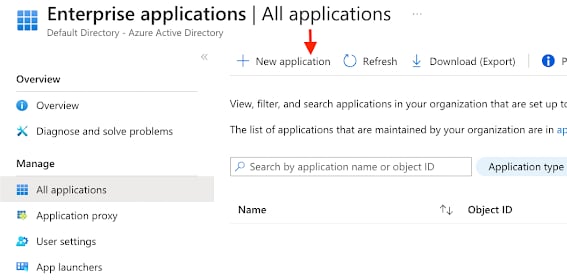
* Navigate to **Azure Services -> Enterprise applications**
* Click **+ New application**
 * Click **+ Create your own application**
* Name the app `ResolveAI`
* Select **Integrate any other application you don’t find in the gallery**
* Click **Create**
* [Download the ResolveAI logo](/images/resolveai-logo.png) and add it as the icon
* Click **Next** to continue
## 2. Configure Single Sign-On (SAML)
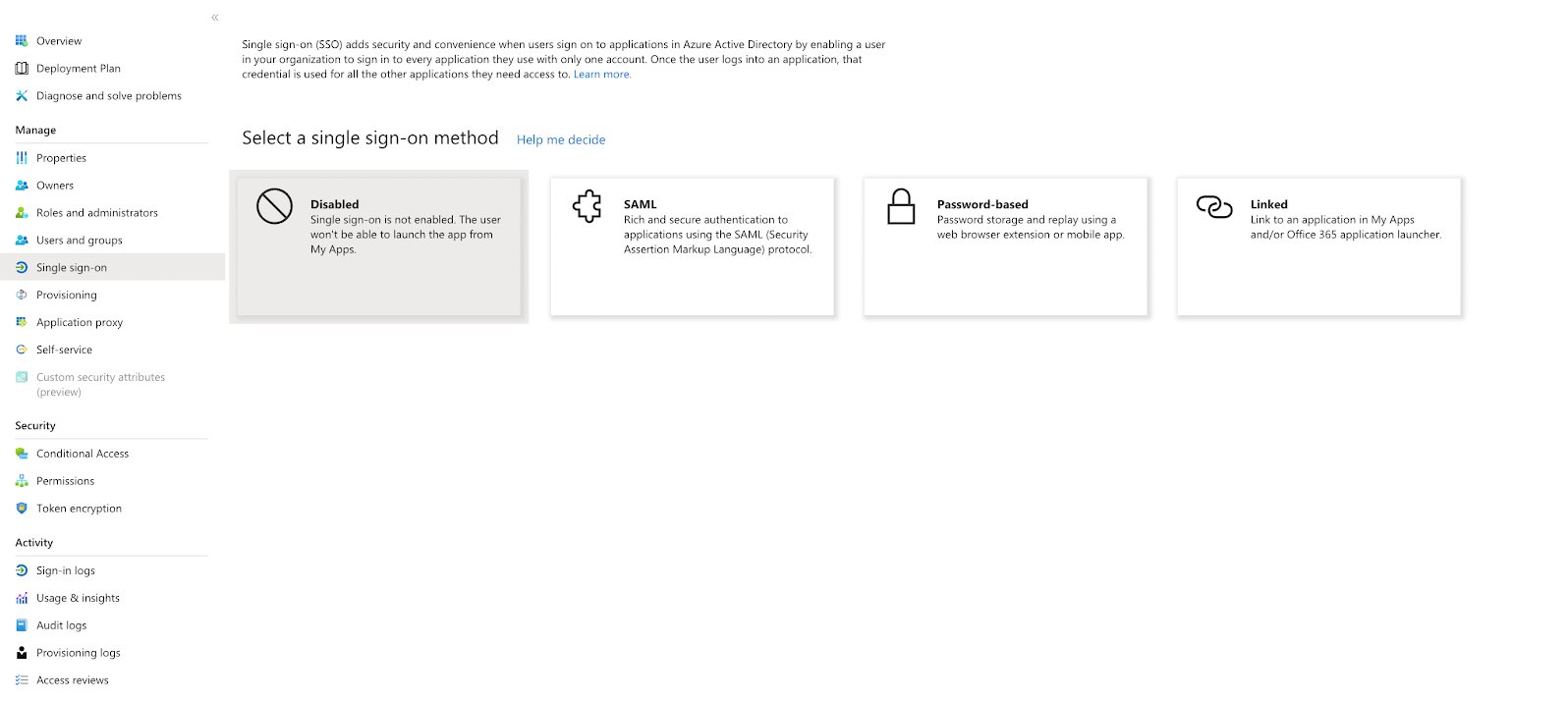
1. From the app's Overview page, click **Single sign-on**
2. Choose the **SAML** sign-on method
* Click **+ Create your own application**
* Name the app `ResolveAI`
* Select **Integrate any other application you don’t find in the gallery**
* Click **Create**
* [Download the ResolveAI logo](/images/resolveai-logo.png) and add it as the icon
* Click **Next** to continue
## 2. Configure Single Sign-On (SAML)
1. From the app's Overview page, click **Single sign-on**
2. Choose the **SAML** sign-on method
 ### Basic SAML Configuration
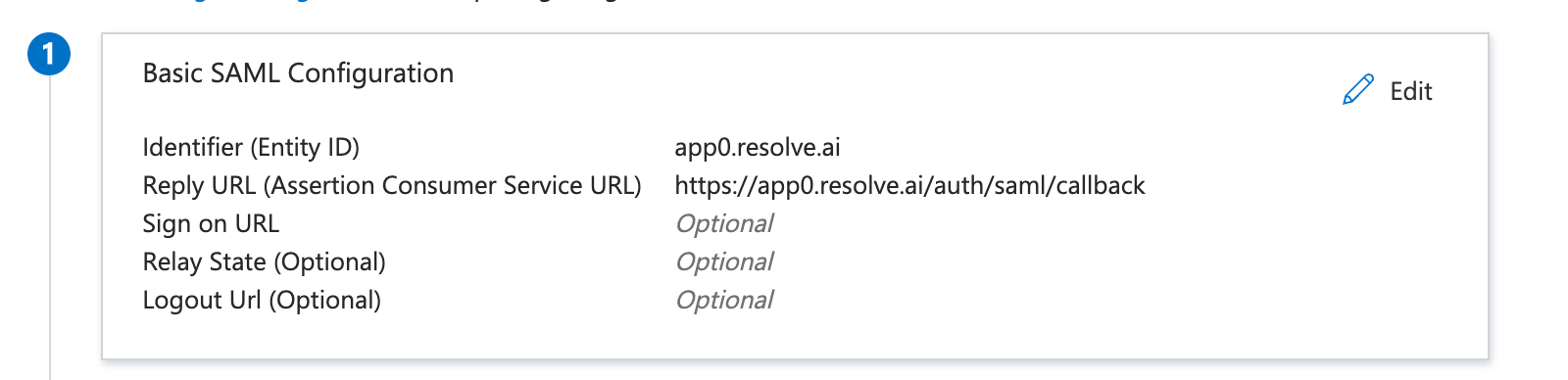
* **Identifier (Entity ID)**: `app0.resolve.ai`
* **Reply URL (ACS URL)**: `https://app0.resolve.ai/auth/saml/callback`
* **Relay State**: leave blank
Your configuration should look like this:
### Basic SAML Configuration
* **Identifier (Entity ID)**: `app0.resolve.ai`
* **Reply URL (ACS URL)**: `https://app0.resolve.ai/auth/saml/callback`
* **Relay State**: leave blank
Your configuration should look like this:
 ## 3. Configure Attributes & Claims
In the **User Attributes & Claims** section, configure the following:
* **nameidentifier**: `user.userprincipalname`
## 3. Configure Attributes & Claims
In the **User Attributes & Claims** section, configure the following:
* **nameidentifier**: `user.userprincipalname`
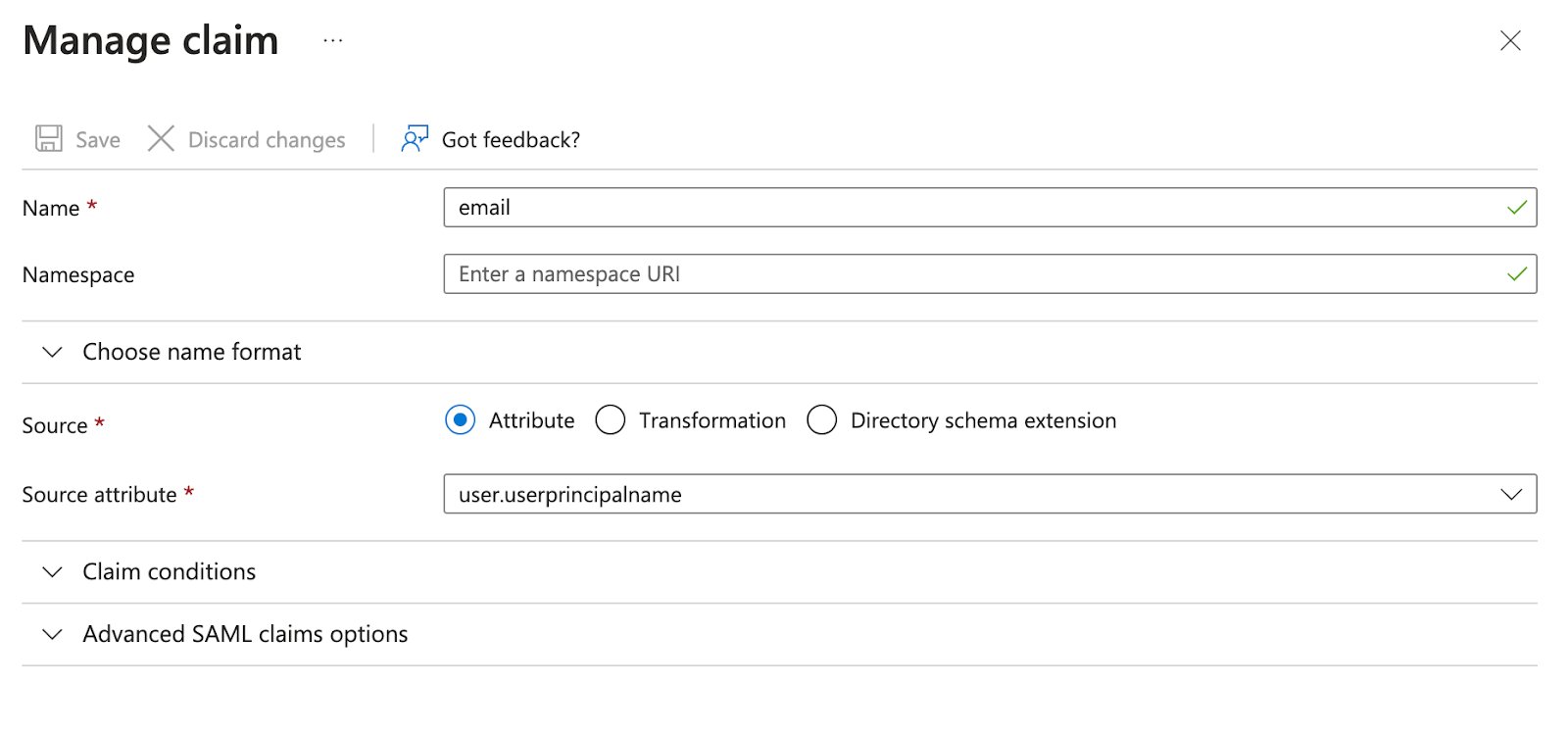
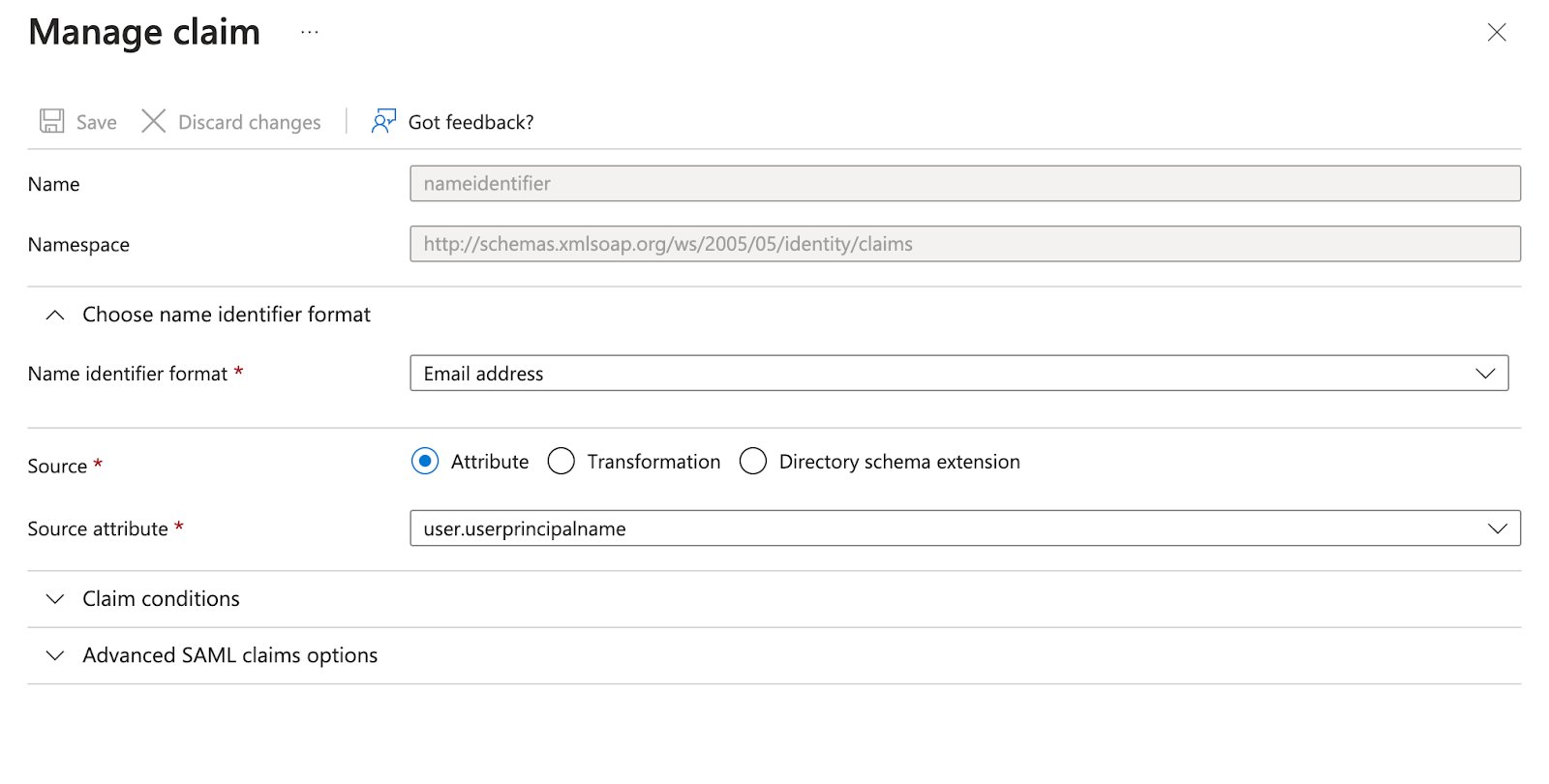 * **email**: `user.userprincipalname` or `user.mail`
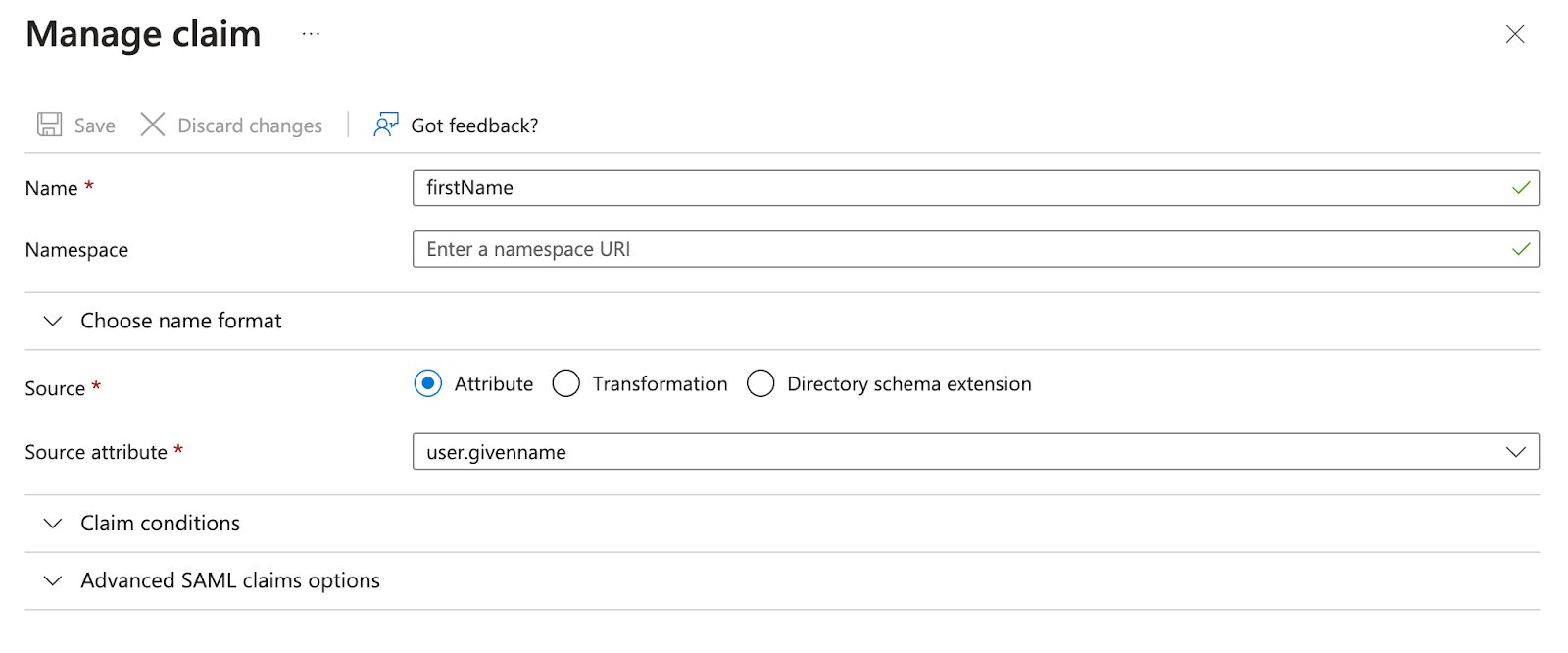
 * **firstName**: `user.givenname`
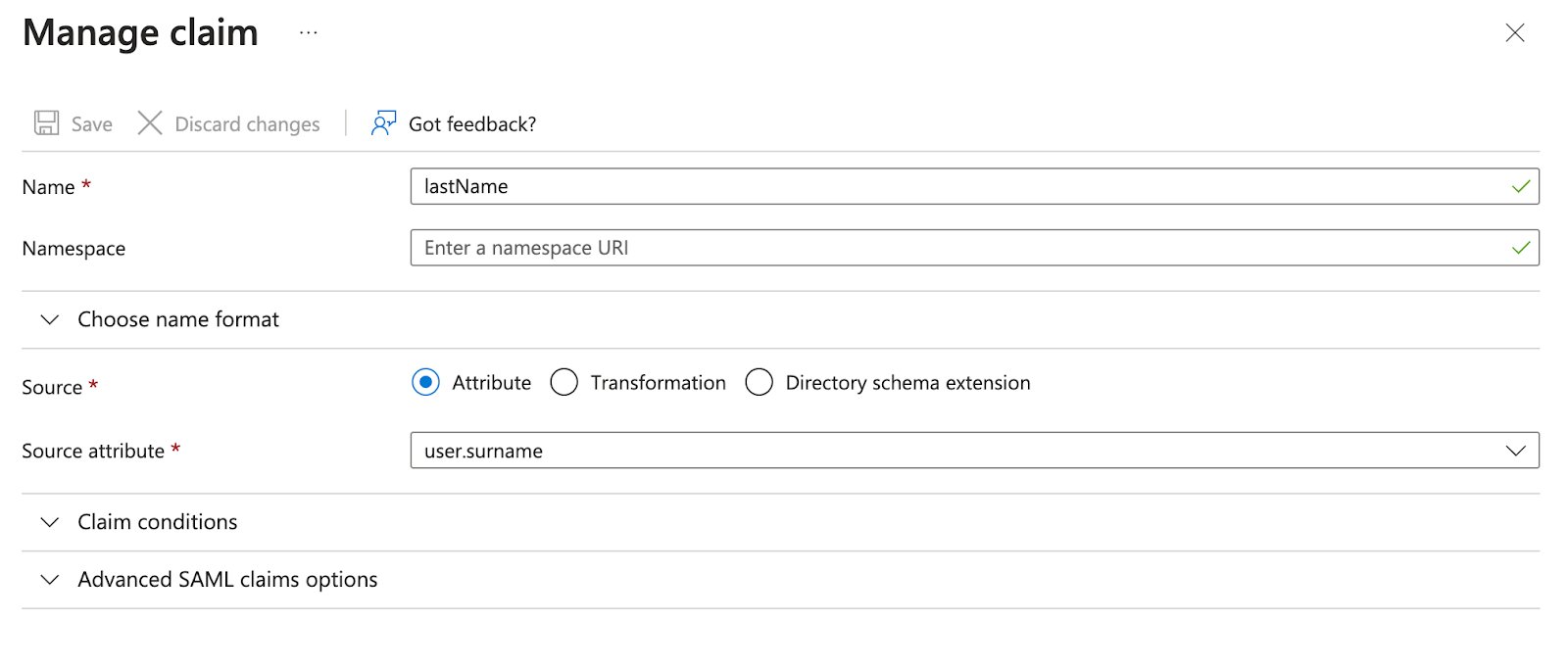
 * **lastName**: `user.surname`
 (Optional) You can also include groups if you're using Azure AD groups for role-based access control.
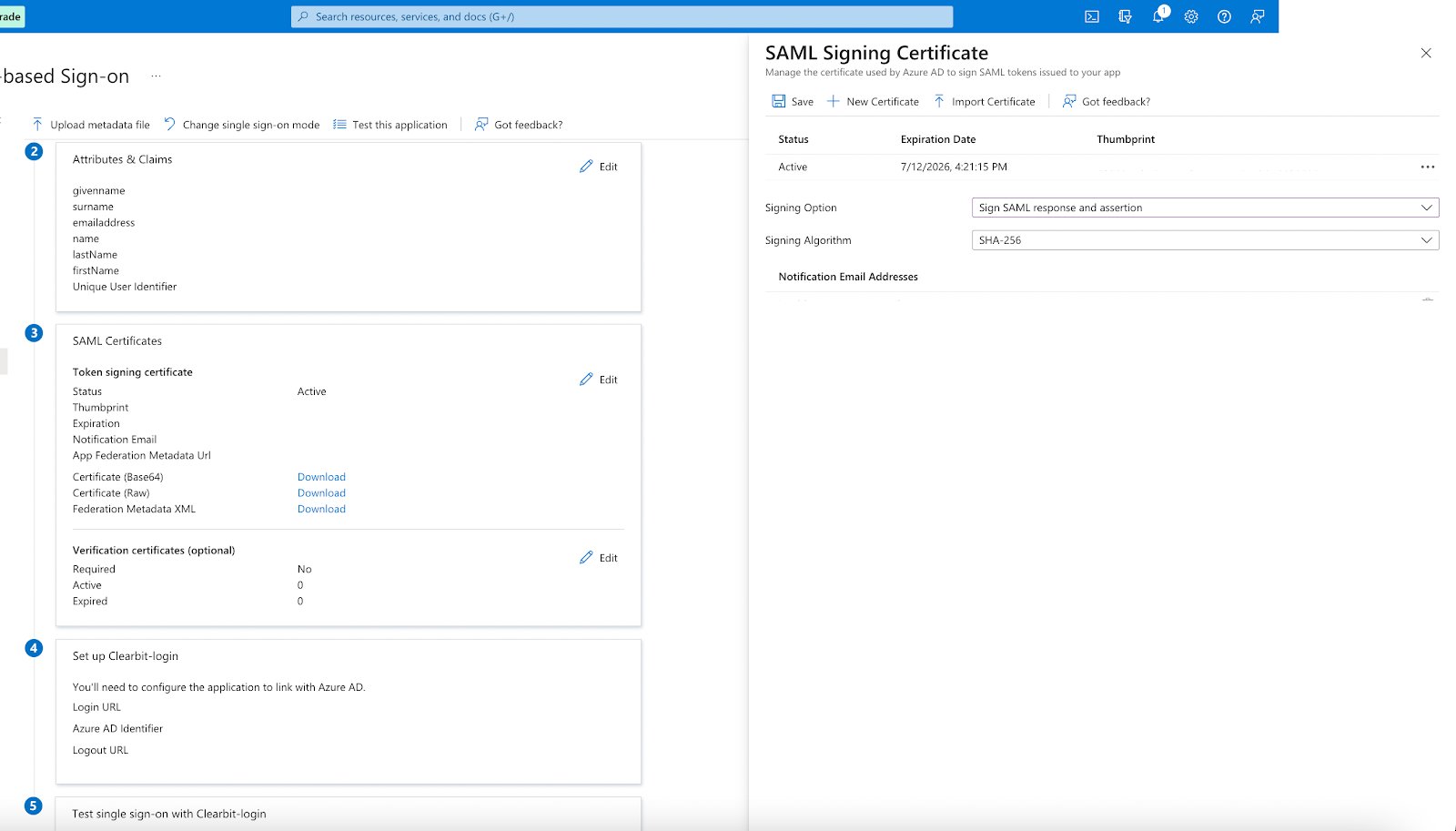
After configuring your details, click **create SAML Certificate**.
(Optional) You can also include groups if you're using Azure AD groups for role-based access control.
After configuring your details, click **create SAML Certificate**.
 ## 4. Assign Users and Groups
Assign the app to users or groups who need access to Resolve. Only those assigned can authenticate.
To learn more: [Assign users and groups in Azure](https://learn.microsoft.com/en-us/azure/active-directory/manage-apps/assign-user-or-group-access-portal)
## **5. Contact ResolveAI**
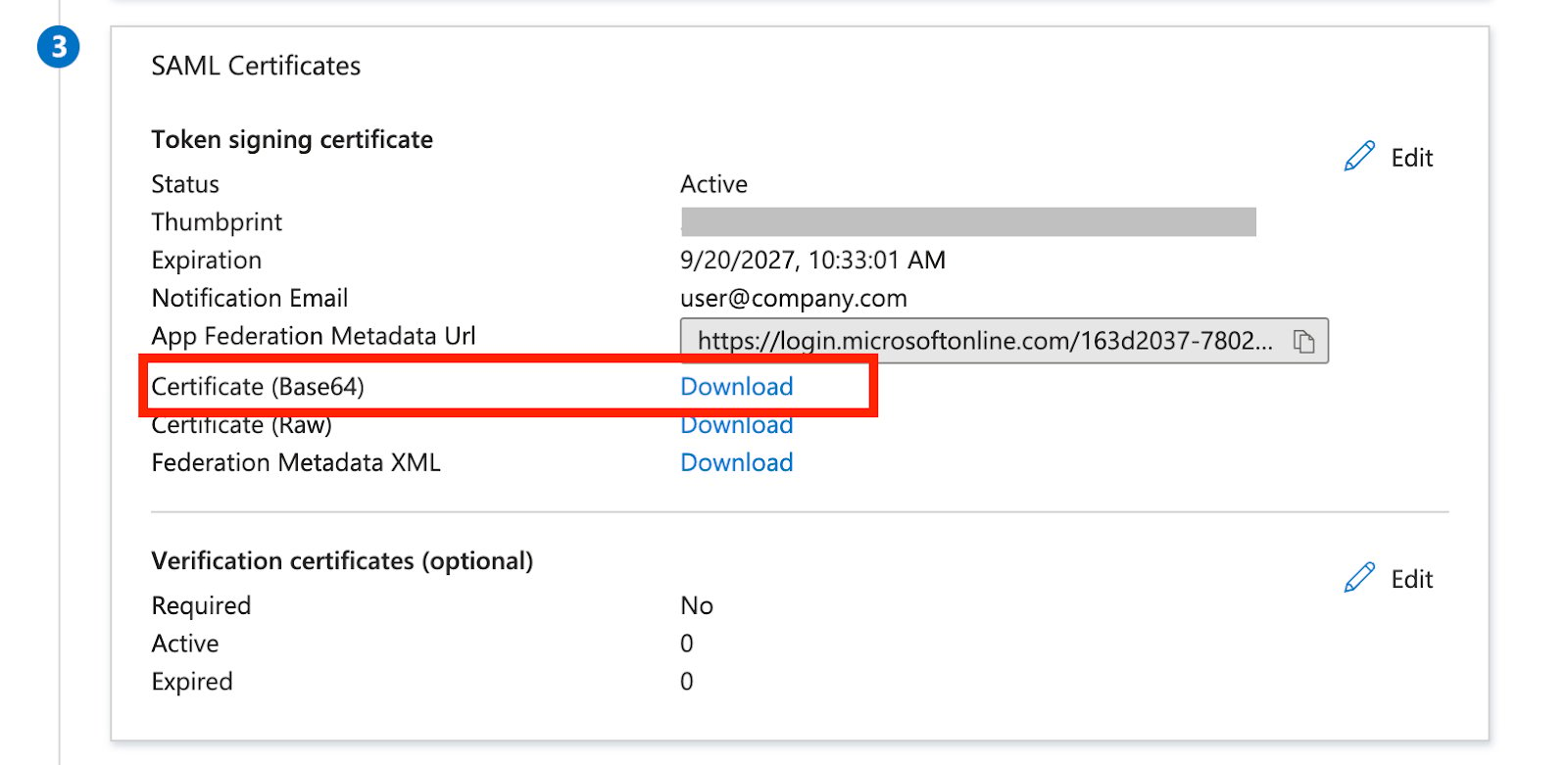
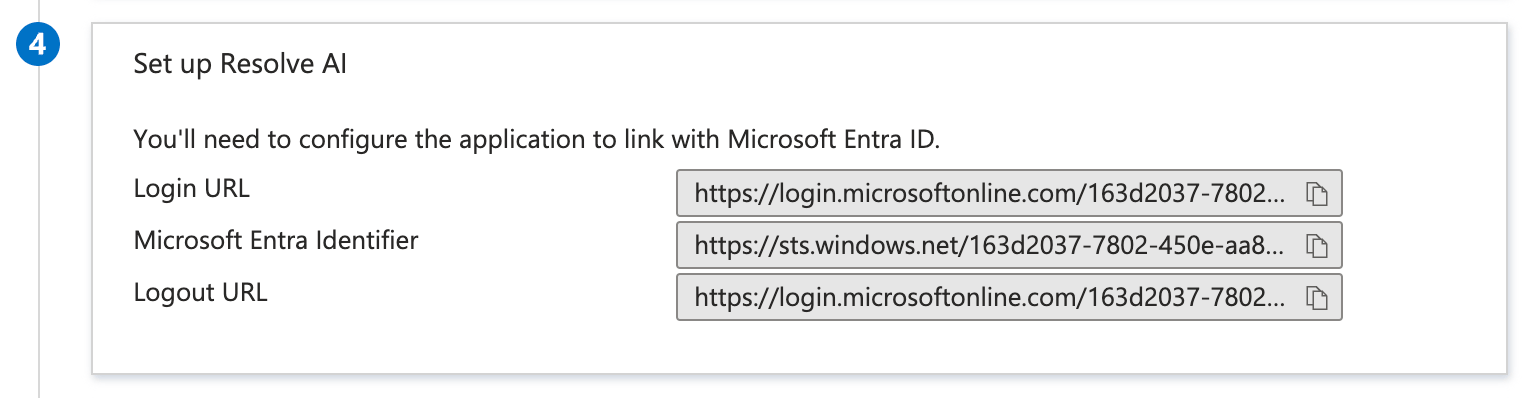
After setup, copy the following to share with your Resolve contact:
* **Login URL**
* **Logout URL**
* **Azure AD Identifier**
* **Base64 Certificate**
## 4. Assign Users and Groups
Assign the app to users or groups who need access to Resolve. Only those assigned can authenticate.
To learn more: [Assign users and groups in Azure](https://learn.microsoft.com/en-us/azure/active-directory/manage-apps/assign-user-or-group-access-portal)
## **5. Contact ResolveAI**
After setup, copy the following to share with your Resolve contact:
* **Login URL**
* **Logout URL**
* **Azure AD Identifier**
* **Base64 Certificate**
 Once confirmed, users can log in at [app0.resolve.ai](https://app0.resolve.ai/).