> ## Documentation Index
> Fetch the complete documentation index at: https://docs.resolve.ai/llms.txt
> Use this file to discover all available pages before exploring further.
# Resolve Satellite
The Resolve Satellite is a lightweight agent that runs within your infrastructure, securely proxying queries to your observability systems and streaming results back to ResolveAI through encrypted channels while keeping credentials behind your firewall.
This guide covers Kubernetes-based Satellite deployments. For deploying on AWS ECS Fargate, see [Satellite on ECS](/satellite-on-ecs).
***
## 1. Core Capabilities
### Understanding Your Infrastructure
The Satellite continuously monitors your Kubernetes cluster through the API server, building a comprehensive model of your infrastructure. It tracks pods, services, deployments, jobs, and more across your configured namespaces. The Satellite operates in a truly read-only mode with zero impact on your API servers.
### Discovering Service Dependencies in Real Time
Traditional service dependency mapping requires instrumentation, APM agents, or manual configuration. The Resolve Satellite takes a different approach with visibility into how your services interact, enabling ResolveAI to understand dependencies without requiring changes to your application code.
### Connecting On-Premises Observability Tools
The Resolve Satellite acts as a secure local proxy that enables ResolveAI to query your local observability systems and stream results back through encrypted channels. Your credentials remain entirely within your infrastructure, and sensitive data can be redacted before transmission. The Satellite supports a comprehensive range of integration types.
### Scaling to Meet Your Needs
The Satellite's architecture supports both vertical and horizontal scaling to handle environments of any size. For most deployments, a single Satellite is sufficient. Replicas don't need to coordinate, and when you need additional capacity for very large clusters or high integration query volumes, scaling horizontally is straightforward. Load balancing across replicas is managed automatically by Resolve's backend. Multiple replicas also provide high availability, allowing you to perform rolling upgrades without disrupting Resolve's ability to investigate incidents.
***
## 2. Deployment & Upgrades
Getting the Resolve Satellite running in your environment takes just a few steps. You'll generate an ingest token, configure your values file, install the Helm chart, and verify connectivity.
### Prerequisites
Before installing the Satellite, ensure you have Kubernetes cluster access with `kubectl`, Helm 3.x installed, and admin access to ResolveAI to generate ingest tokens.
***
### Install the Resolve Satellite
The installation process configures the Satellite to connect securely to Resolve's backend and begin a connection from your Kubernetes cluster.
#### 1. Create Ingest Token
The Satellite communicates with the Resolve backend over an authenticated, encrypted channel. Authentication is handled via an ingest token you generate in the Resolve UI.
As an admin in ResolveAI, open the [Ingest Tokens](https://app0.resolve.ai/admin/tokens) page. Click **Create Ingest Token**, name it descriptively (e.g., "production-main-cluster"), click **Create ingest token**, and copy the token immediately. You will need it in the next step.
***
#### 2. Configure Your Ingest Token
You'll need to create a `resolve-values.yaml` file with your configuration. Before proceeding, choose how you want to handle the ingest token based on your environment.
**Production/Secure Setup (Recommended)**
For production environments, configure secure token storage using Kubernetes secrets or external secrets managers. Continue to [Secret Management](/secret-management) to set up secure token storage, then return here for Step 3.
The Secret Management guide will walk you through storing tokens in Kubernetes secrets with an encrypted etcd and integrating with external secrets managers like AWS Secrets Manager, Azure Key Vault, and HashiCorp Vault.
**Quick Test Setup (Development Only)**
For quick local testing, you can store the token directly in your values file. This method provides no additional security and should only be used temporarily.
**Required Values:**
* **ingest.token**: The token created in Step 1
* **clusterName**: Global identifier for the satellite (e.g., `prod-main`)
* **environment**: e.g., `production`, `staging`, `qa`. Match this environment name *exactly* with each integration you set up (e.g., Datadog).
```yaml resolve-values.yaml theme={null}
ingest:
token:
clusterName:
environment:
```
***
#### 3. Install Helm Chart
Use this command to install the [Helm Chart from Docker Hub](https://hub.docker.com/r/resolveaihq/satellite-chart/tags):
```shell theme={null}
helm install resolve-satellite \
oci://registry-1.docker.io/resolveaihq/satellite-chart \
--values resolve-values.yaml
```
**If installation is rejected due to missing labels**
Some Kubernetes clusters use admission controllers or policies that require specific labels on pods before they can be deployed. If your installation fails with a message about missing labels, add the labels required by your cluster policies to your `resolve-values.yaml`:
```yaml theme={null}
podLabels:
team: your-team-name
# Add any other labels required by your cluster policies
```
If you're using [CDK8s (Cloud Development Kit for Kubernetes)](https://cdk8s.io/) to manage your Kubernetes deployments, you can deploy the Satellite using a CDK8s Helm chart construct instead of running Helm commands directly.
The example below uses TypeScript and is for the latest version of CDK8s. Syntax may vary depending on your programming language (Python, Java, Go, etc.) and CDK8s version. Refer to the [CDK8s documentation](https://cdk8s.io/docs/latest/) for language-specific examples.
**Example CDK8s TypeScript code:**
```typescript theme={null}
import { App, Chart } from 'cdk8s';
import { Helm } from 'cdk8s';
const app = new App();
const chart = new Chart(app, 'satellite');
new Helm(chart, 'resolve-satellite', {
chart: 'oci://registry-1.docker.io/resolveaihq/satellite-chart',
namespace: 'resolve', // Specify namespace here
createNamespace: true, // Create if doesn't exist
releaseName: 'resolve-satellite',
values: {
ingest: {
tokenSecretName: 'satellite-token',
},
clusterName: 'prod-cluster',
environment: 'production',
},
});
app.synth();
```
This approach generates the Kubernetes YAML manifests from your CDK8s code. You cannot directly edit YAML files or run Helm commands when using CDK8s - all configuration must be specified in the CDK8s chart definition.
***
#### 4. Check Permissions
The Resolve Satellite reads from the Kubernetes API with a `ClusterRole`. Verify the permissions granted:
```shell Describe permissions theme={null}
kubectl describe clusterrole resolve-satellite
```
* **Core Resources:** ConfigMaps, Events, Namespaces, Nodes, Pods, Services
* **Workload Controllers:** DaemonSets, Deployments, ReplicaSets, StatefulSets
* **CRDs**: ArgoRollout, istioVirtualService, istioGateway
***
#### 5. Verify Connection
In the Resolve UI, check [Kubernetes Integrations](https://app0.resolve.ai/integrations/kubernetes/connect) to verify that the satellite is connected.
***
### Next: Enable DNS Tap
Now that the Resolve Satellite is installed, enable cross-application investigations with Resolve using [DNS Tap](/dns-tap).
***
### Upgrading the Satellite
The Satellite supports rolling upgrades with zero downtime. When new versions are released, you can upgrade your deployment using Helm while maintaining connectivity to Resolve's backend.
Since version 1.1.0, the Satellite uses StatefulSets instead of Deployments to enable PVC templates. This allows persistent storage for features like the [Git integration](/git), so repositories aren't cloned from scratch on every pod restart.
PVCs are disabled by default and upgrading to v1.1.0+ does not require any special consideration. See the [Git integration](/git) documentation on configuring storage size and type.
#### Upgrade to Latest Version
To upgrade your Satellite to the latest version, use the Helm upgrade command. This pulls the latest Satellite image and applies any configuration changes from your values file.
```shell theme={null}
helm upgrade resolve-satellite \
oci://registry-1.docker.io/resolveaihq/satellite-chart \
--values resolve-values.yaml
```
***
#### Upgrade to Specific Version
To upgrade to a specific version, specify the chart version in your command. View available versions at [Docker Hub Helm Chart Tags](https://hub.docker.com/r/resolveaihq/satellite-chart/tags).
```shell theme={null}
helm upgrade resolve-satellite \
oci://registry-1.docker.io/resolveaihq/satellite-chart \
--version \
--values resolve-values.yaml
```
***
#### Verify Upgrade
After upgrading, verify the Satellite is running the new version. Check the pod status and image version:
```shell theme={null}
kubectl get pods -l app.kubernetes.io/name=satellite
kubectl describe pod resolve-satellite-0 | grep Image:
```
Check the Resolve UI [Kubernetes Integrations](https://app0.resolve.ai/integrations/kubernete/connect) page to confirm the Satellite is connected and healthy.
***
#### Rollback if Needed
If you encounter issues after upgrading, rollback to the previous version:
```shell theme={null}
helm rollback resolve-satellite
```
***
## 3. Integrations
The Resolve Satellite connects ResolveAI to your on-premises observability stack. Each integration is configured in your `resolve-values.yaml` file with credentials stored in Kubernetes secrets. The Satellite automatically detects configuration changes through a built-in file watcher—no manual restarts required.
### Configuration Approach
All integrations follow a consistent pattern:
1. Create a Kubernetes secret containing credentials (API tokens, passwords)
2. Reference the secret in your `resolve-values.yaml` file
3. Specify connection parameters (URLs, filters, options)
4. Deploy or upgrade your Satellite with the new configuration
***
### Secret Management
For production environments, we strongly recommend using secure secret storage through Kubernetes Secrets with etcd encryption at rest or external secret managers like AWS Secrets Manager, Azure Key Vault, HashiCorp Vault, and Google Secret Manager.
For a complete guide on configuring secrets, see [Secret Management](/secret-management).
***
### Integration Scoping by Team
You can manage per-team enablement for Satellite-managed integrations from your Satellite Helm values file by adding an `integrationScopes` block to an integration. Use this when integration access should be controlled through Helm instead of the Resolve UI.
Add `integrationScopes` as a sibling of `connection`, not inside it. Each key must be a Resolve team ID, visible in the team URL as `/teams/`. Each entry currently supports `enabled: true` or `enabled: false`.
```yaml theme={null}
integrations:
grafanaOnPrem:
type: grafana
create: true
secretName: grafana-token
connection:
url: https://grafana.internal.company.com
alertScrapingEnabled: true
integrationScopes:
:
enabled: true
:
enabled: false
```
When `integrationScopes` is configured for an integration:
* Helm manages that integration's per-team enable/disable state.
* Teams set to `enabled: false` cannot use the integration.
* Teams set to `enabled: true`, and teams not listed, are enabled by default.
* The Resolve UI locks the per-team enable/disable controls for that integration.
* Team-specific connection overrides remain editable in the UI and are preserved across Satellite re-registration.
Because unlisted teams are enabled by default, list every team that should be disabled. To return scope management to the Resolve UI, remove the `integrationScopes` block from the integration and run `helm upgrade`; the UI will become editable again using the last stored scoped settings as its starting point.
***
### Integration Examples
The Kubernetes integration is included by default. To customize namespace filtering, specify which namespaces to include in your connection configuration. For example, to limit scraping to production, staging, and monitoring namespaces, set `namespaceIncludeList` to a comma-separated string of namespace names.
```yaml theme={null}
integrations:
kubernetesOnPrem:
type: kubernetes
create: true
secretName:
connection:
namespaceIncludeList: "production,staging,monitoring"
```
***
#### On-Premises Observability Tools
Example configurations for common tools demonstrate the standard integration pattern.
For Prometheus, enable service map construction from traces if desired:
```yaml theme={null}
integrations:
prometheusOnPrem:
type: prometheus
create: true
secretName: prometheus-token
connection:
url: https://prometheus.internal.company.com
serviceMapEnabled: true
```
For Grafana, enable alert scraping to ingest alerts from Grafana's AlertManager:
```yaml theme={null}
integrations:
grafanaOnPrem:
type: grafana
create: true
secretName: grafana-token
connection:
url: https://grafana.internal.company.com
alertScrapingEnabled: true
```
For Elasticsearch, specify which indices to allow for log queries using an index pattern:
```yaml theme={null}
integrations:
elasticsearchOnPrem:
type: elasticsearch
create: true
secretName: elasticsearch-token
connection:
url: https://elasticsearch.internal.company.com
indexAllowList:
- application-logs-*
- system-logs-*
```
For detailed configuration parameters for each integration type, including filters, multi-tenancy options, and advanced settings, see the [Reference Schema](/reference-schema).
***
#### Git Integration
The Git integration enables ResolveAI to access repositories for investigations. For a complete setup guide, see [Git Integration](/git).
***
## 4. Security Controls
The Resolve Satellite is designed with security as a foundational principle. This section covers the security features and controls available for hardening your deployment.
### Encrypted Communication
All communication between the Satellite and Resolve's backend is over HTTP/2.0 with encryption. These long-lived connections span 30+ minutes and use token authentication to verify every request.
### Secret Storage & Management
All integration credentials (API tokens, passwords) are stored in Kubernetes secrets or within your secrets manager within your cluster. The Satellite mounts these secrets as files at `/etc/secrets//`. Raw secret values never leave your infrastructure or transit to Resolve's cloud.
For production deployments, we recommend using Kubernetes secrets with etcd encryption at rest or integrating external secret managers like AWS Secrets Manager, HashiCorp Vault, and Azure Key Vault. Rotate credentials regularly using secret updates without Satellite downtime.
For a complete guide, see [Secret Management](/secret-management).
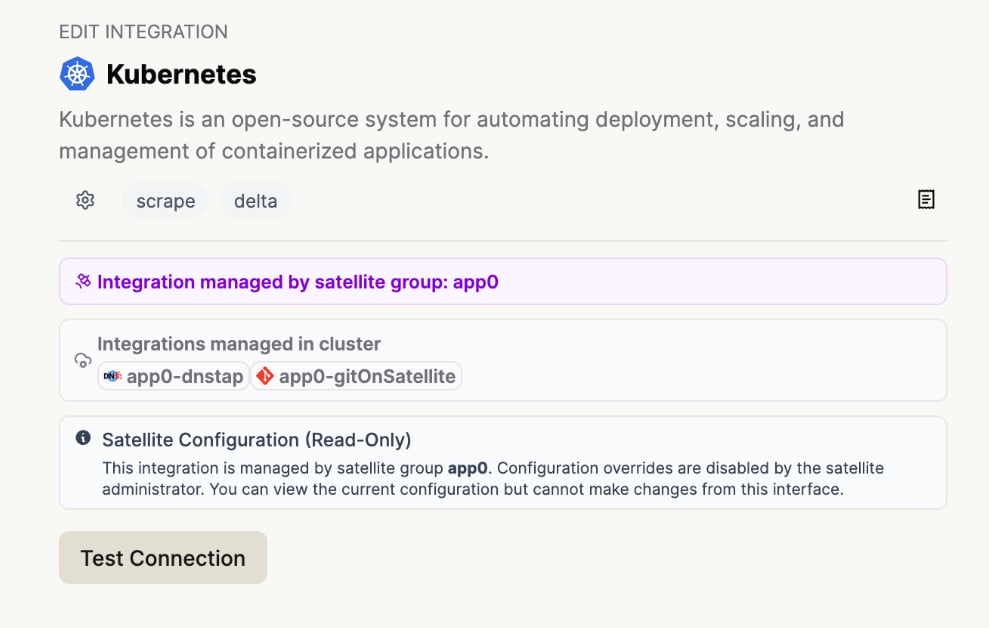
### Configuration Immutability (Config Override)
The `configOverride` setting (default: `false`) controls whether Resolve's SaaS platform can remotely modify integration configurations through the UI.
When disabled (default), all configuration changes require Helm chart updates. This enforces GitOps workflows and change approval processes, ensuring configuration remains immutable and auditable. No remote configuration tampering is possible.
When enabled, administrators can edit integration settings from the Resolve web interface. This is useful for rapid testing and development environments but not recommended for production.
By defaulting to `false`, the Satellite enforces the principle of least privilege and configuration-as-code practices.
### Domain Allowlist
The `domainAllowList` setting restricts outbound API requests from the Satellite to specific integration domains. This prevents data exfiltration and unauthorized external API calls.
The allowlist accepts an array of domain strings and supports wildcard patterns (e.g., `*.example.com` for subdomains). The Satellite validates all HTTP requests before execution and throws an error if the target domain is not allowed. An empty list permits all domains (default).
Example for Grafana:
```yaml theme={null}
integrations:
grafanaOnPrem:
type: grafana
create: true
secretName: grafana-resolve-secret
connection:
url: https://yourteam.grafana.com
domainAllowList:
- yourteam.grafana.com
- "*.yourcompany.com"
```
### Audit Logging
Audit logging captures detailed information about every HTTP request made to external integrations for security, compliance, and debugging purposes.
When enabled, audit logging records the request method, URL, request body, response status code, integration key, and success/failure status. All audit logs are tagged with `"audit": true` for filtering.
Enable audit logging in your integration configuration:
```yaml theme={null}
integrations:
kubernetesOnPrem:
type: kubernetes
create: true
secretName:
connection:
enableAuditLogging: true
```
View audit logs in your Satellite pod:
```shell theme={null}
kubectl logs statefulset/resolve-satellite --tail=100 | grep '"audit":true'
```
If running multiple replicas, this shows logs from one pod. Check others with `kubectl logs resolve-satellite-1`, etc.
Audit logging provides a comprehensive audit trail for security investigations and compliance audits.
### Sensitive Data Redaction
The Satellite supports configurable PII redaction for integrations that collect or process sensitive data. Specify JSON paths to redact in the integration configuration. The Satellite will mask values at those paths before transmitting data.
Example for Datadog:
```yaml theme={null}
integrations:
datadogOnPrem:
type: datadog
create: true
secretName: datadog-credentials
connection:
site: datadoghq.com
redactionConfig:
enabled: true
targetJsonPaths:
- "$.tags.user_email"
- "$.attributes.customer_name"
```
For a complete guide, see [Sensitive Data Redaction](/sensitive-data-redaction).
### HTTPS Certificate Configuration
For integrations behind custom certificate authorities or requiring mutual TLS, configure certificates in your integration settings.
Certificate options include `httpAgentCertificate` (CA certificate for verifying the server), `httpAgentClientCert` (client certificate for mutual TLS), and `httpAgentClientKey` (client private key for mutual TLS). Certificates can be specified as raw content or file paths.
Example for Splunk with mutual TLS:
```yaml theme={null}
splunkIntegration:
secretDir: /etc/secrets/splunkIntegration
create: true
type: splunk
connection:
url: https://splunk.internal.company.com
httpAgentCertificatePath: /certs/ca-cert.pem
httpAgentClientCertPath: /certs/client-cert.pem
httpAgentClientKeyPath: /certs/client-key.pem
```
### Running as Non-Root User
For enhanced security, configure the satellite to run as a non-root user. Add the `podSecurityContext` and `securityContext` settings to your `resolve-values.yaml` file.
**Where to add these settings:** Both `podSecurityContext` and `securityContext` are **top-level keys** in your values file - they go at the same level as `ingest`, `clusterName`, and `integrations`, not nested inside any other key.
```yaml theme={null}
# Your existing configuration
ingest:
token:
clusterName:
environment:
# Pod-level security context (applies to the entire pod)
# Controls user/group IDs and filesystem permissions
podSecurityContext:
runAsNonRoot: true
runAsUser: 1000
runAsGroup: 1000
fsGroup: 1000
# Container-level security context (applies to the satellite container)
# Controls privilege escalation and Linux capabilities
securityContext:
allowPrivilegeEscalation: false
capabilities:
drop:
- ALL
# Your integrations continue here...
integrations:
# ...
```
**What each setting does:**
* **`podSecurityContext`** (Pod level): Applies to all containers in the pod. Sets `runAsNonRoot`, `runAsUser`, `runAsGroup`, and `fsGroup`.
* **`securityContext`** (Container level): Applies to the satellite container. Controls `allowPrivilegeEscalation` and `capabilities`.
The `fsGroup` setting ensures mounted volumes (including the [Git integration](/git) data volume) are accessible to the non-root user.
***
## Resolve Satellite Security Features
### Config Override
The **configOverride** setting in the satellite **resolve-values.yaml** file (default: false) controls whether the Resolve SaaS platform can remotely modify the Satellite's integration configurations through the UI.
When enabled (set to true), administrators can edit integration settings from the Resolve web interface; when disabled, the edit config is not shown in the UI, ensuring that only the local Helm values file controls the satellite's configuration.
This is beneficial for security because it enforces the principle of least privilege and configuration-as-code practices - organizations can prevent unauthorized or accidental changes to critical infrastructure integrations by requiring all configuration changes to go through their standard GitOps workflows and approval processes rather than allowing real-time UI modifications.
By defaulting to `false` in production deployments, the Satellite ensures that configuration remains immutable and auditable, with changes only possible through version-controlled Helm chart updates that can be reviewed, tested, and rolled back if needed.
### Domain Allowlist
**domainAllowList** is a security configuration for HTTP-based integrations running on the Satellite that restricts outbound API requests to specific domains. It accepts an array of domain strings with support for wildcard patterns (e.g., \*.example.com for subdomains). When configured, the Satellite validates all HTTP request URLs against the list before execution, throwing an error if the target domain is not allowed. If the list is empty or undefined, all domains are permitted by default.
Here is an example for Grafana:
```
integrations:
grafanaOnPrem:
type: grafana
create: true
secretName: "grafana-resolve-secret-name"
connection:
url: https://yourteam.grafana.com
domainAllowList:
- yourteam.grafana.com
- "*.yourcompany.com"
```
***
## Frequently Asked Questions
* **CPU**: 1 Core
* **Memory**: 8 GB
* **Storage**: 1 GB (base) + additional for the [Git integration](/git) (see [storage configuration](/git-on-satellite#storage-configuration))
The satellite keeps most working data in memory. Storage is used for container images and temporary file sources, as well as code repositories cloned by the [Git integration](/git).
* [Helm chart](https://hub.docker.com/r/resolveaihq/satellite-chart/tags)
* [Image](https://hub.docker.com/r/resolveaihq/satellite/tags)
The Satellite relies on two primary sources, the Kubernetes API Server and DNS Tap.
**Kubernetes API Server**:
* Collects from: Pods, Services, Deployments, Jobs, ConfigMaps, Events, Nodes, PVCs, CRDs
* Uses Watch API with caching and concurrency
* Default interval: every 10 minutes (configurable)
* Namespace concurrency: 10 threads (contact us to configure)
* Scrapes customResourceDefinitions from Kubernetes:
* Ingest popular CRDs like ArgoRollout, IstioVirtualService, IstioGateway
* Ingest custom CRDs (contact us to configure)
**DNS Tap**:
* Open source DNS log monitoring
* Captures service-to-service DNS traffic (e.g., from CoreDNS)
* Enables automatic runtime dependency discovery
* Non-intrusive push model (no polling)
No. It is **read-only** and leverages the **Kubernetes watch cache**, minimizing impact on cluster performance.
* Kubernetes API reads occur every **5 minutes by default**.
* This interval is **configurable** (e.g., every 10 or 15 minutes depending on your needs).
* Note: you will need to get in touch with your ResolveAI contact to make this configuration change.
* Namespace-level concurrency is also tunable (default: 10 concurrent read threads).
**If your proxy supports long-lived HTTP2.0 connections**: The satellite communicates with the Resolve server using a bidirectional gRPC/HTTP2.0 streaming connection. These are long-lived connections spanning over 30 minutes. If the proxy supports long-lived HTTP2.0 streaming connections, then yes, satellites should be able to support it.
**Otherwise**: Allowlist the static IP for the Resolve server so the satellite can communicate with it.
We have a CIDR block of IP addresses for the satellite to securely connect to the ResolveAI backend. Add this set of addresses to your allowlist, a /29 block of 8 IPs: `18.97.138.16/29`.
The Resolve Satellite is a lightweight proxy that establishes a bidirectional gRPC/HTTP2.0 streaming connection with the Resolve server and executes HTTP requests to local on-prem integrations — both observability data sources and Kubernetes.
The satellite periodically fetches data from Kubernetes and other on-prem integrations to update its Knowledge Graph, but this frequency is configurable and we ensure minimal load on your servers.
Assuming that your typical cluster sizes are:
* Namespaces: \~1000
* Nodes: 400
* Pods: 10,000
Here are some numbers that illustrate the load placed on your Kubernetes API server:
* Polling interval is 10 minutes (configurable)
* Each poll is sharded and fetches about 1-2MiB of data.
* We further limit the concurrency of these shards to 10 (configurable) and it roughly approximates to \~25 requests per second.
There should not be any observable load or latency on your system.
Resolve supports [Sensitive Data Redaction](/sensitive-data-redaction) to handle PII.
The satellite architecture supports horizontal scaling through multiple replicas, allowing it to handle very large loads by adjusting the replica count as needed. Load balancing for the satellites is managed on our backend, ensuring efficient distribution of data and operational control.
Yes. One Satellite instance can connect to multiple Kubernetes clusters as long as the kubeconfig is supplied within the secret value.
First, create a Kubernetes secret containing your kubeconfig.yaml file. The `stringData` field in a Kubernetes Secret enables you to provide secret values as plain text strings, which are then automatically base64-encoded and stored in the data field.
**Secret Definition Example:**
```yaml theme={null}
apiVersion: v1
kind: Secret
type: Opaque
metadata:
name: k8s-resolve
stringData:
kubeconfig.yaml: |
apiVersion: v1
kind: Config
clusters:
- name: your-cluster
cluster:
server: https://your-cluster-api-server:6443
certificate-authority-data:
users:
- name: your-user
user:
token:
contexts:
- name: your-context
context:
cluster: your-cluster
user: your-user
current-context: your-context
```
Then, apply your secret:
```bash theme={null}
kubectl apply -f k8s-resolve.yaml
```
Lastly, add this into your `resolve-values.yaml` file:
```yaml theme={null}
integrations:
kubernetesIntegration:
type: kubernetes
create: true
secretName: "k8s-resolve"
connection:
contextName: "your-context" # Optional
environment: "production"
```
You can provide the `httpAgentCertificate` for authentication, along with the `httpAgentClientCert` and `httpAgentClientKey` if the endpoint requires mutual TLS. Each can be specified either as a raw certificate or as a file path.
**Example using file paths (Splunk):**
```yaml theme={null}
splunkIntegration:
secretDir: /etc/secrets/splunkIntegration
create: true
type: splunk
connection:
url:
httpAgentCertificatePath:
httpAgentClientCertPath:
httpAgentClientKeyPath:
```
**Example using raw certificates (Splunk):**
```yaml theme={null}
splunkIntegration:
secretDir: /etc/secrets/splunkIntegration
create: true
type: splunk
connection:
url:
httpAgentCertificate:
httpAgentClientCert:
httpAgentClientKey:
```