> ## Documentation Index
> Fetch the complete documentation index at: https://docs.resolve.ai/llms.txt
> Use this file to discover all available pages before exploring further.
# Sensitive Data Redaction
Resolve can redact data to ensure no leaked sensitive data in your logs or traces even reaches ResolveAI's storage layer. The redaction approach you choose depends on the selected integration, whether using an on-prem setup or a cloud-based observability tool.
Sensitive data includes personally identifiable information (PII), customer-identifiable information (CII), cardholder data (CHD). Protecting this data ensures compliance with industry standards, including PCI, DSS, and GDPR.
There are 3 options for sensitive data redaction:
1. **Cloud**: Advanced settings in the Resolve page for a cloud-based integration
2. **Satellite**: Data redaction capabilities with standard regexes
3. **Sidecar**: Deploy alongside the satellite to customize redaction logic
## Data Subject to Redaction
The following categories of sensitive information are subject to redaction:
* **Logs**: Entire raw log messages.
* **Spans / Traces**: Attributes and tags.
* **Metrics**: All metric names and label values.
## Redacted Data Patterns
Redaction is based on a list of regex expressions on common sensitive data. See the full list below:
* Email
* Phone number
* DOB
* Credit card number
* Bank account
* Card expiration date
* SSN
* EIN
* IP Address
* US street address
## Option 1: Redaction for Cloud Integrations
Sensitive data redaction can be enabled on a per integration basis.
* Open the desired integration, such as **Datadog**.
* **Enable the Redaction Config** within the integration settings.
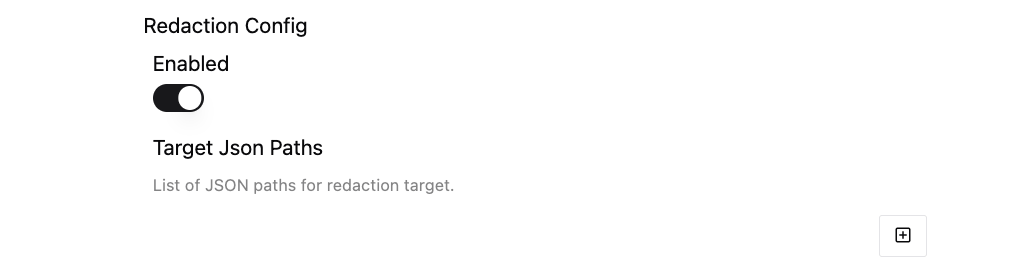 * By default, ResolveAI redacts the all JSON paths listed in the "Supported data types and observability platforms" section above.
* You can also specify additional custom target JSON paths to redact as needed. E.g; `$.data[*].attributes.spans[*].mytags..*`
## Option 2: On-Prem Redaction from Satellite Sidecar
Sensitive data redaction can be enabled on a per integration basis from the [Resolve Satellite](/resolve-satellite).
### Prerequisites
1. The Resolve Satellite should already be installed in your environment. If you need assistance with installation, refer to the instructions provided in [Resolve Satellite](/resolve-satellite) section.
2. If you need assistance with the installation, refer to the instructions provided in the respective observability tool integration documentation.
3. The specific integration you want to redact data for should be set up through the Resolve Satellite.
### Update integration configuration
Update your helm values override file (ex: `resolve-values.yaml`) with the `redactionConfig` configuration for a specific integration (ex. `grafanaOnPrem`).
```yaml resolve-values.yaml theme={null}
integrations:
grafanaOnPrem:
type: grafana
create: true
secretName:
connection:
region:
accessKeyId:
secretAccessKey:
redactionConfig: # Enable Redaction Config
enabled: true
```
Install the satellite and apply the updates to the values file (ex. `resolve-values.yaml`). Visit DockerHub for the latest [Helm chart](https://hub.docker.com/r/resolveaihq/satellite-chart/tags) and [satellite](https://hub.docker.com/r/resolveaihq/satellite/tags).
```shell apply config to satellite and redeploy theme={null}
helm upgrade --install oci://registry-1.docker.io/resolveaihq/satellite-chart --version --values resolve-values.yaml --set image.tag=
```
Once your satellite is deployed, Resolve automatically redacts sensitive data specific to its configured integration.
### Verify redaction is enabled
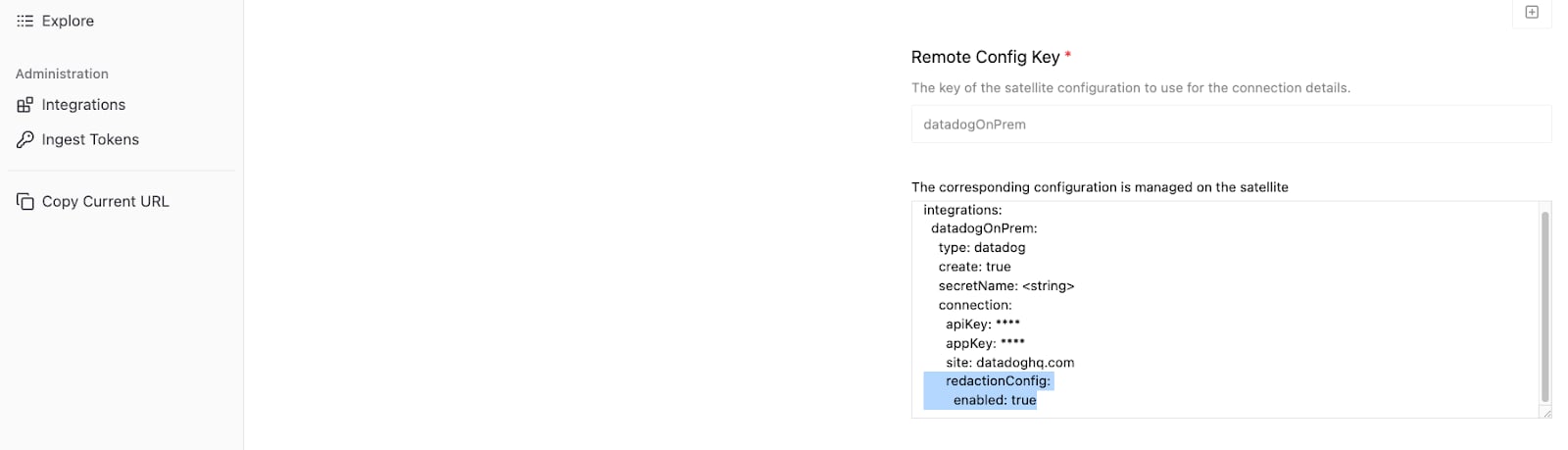
Login to [https://app0.resolve.ai/](https://app0.resolve.ai/). Go to the integrations page and and select the integration for which you enabled sensitive data redaction.
You should see an automatically created integration based on the provided configuration, including whether redaction is enabled.
* By default, ResolveAI redacts the all JSON paths listed in the "Supported data types and observability platforms" section above.
* You can also specify additional custom target JSON paths to redact as needed. E.g; `$.data[*].attributes.spans[*].mytags..*`
## Option 2: On-Prem Redaction from Satellite Sidecar
Sensitive data redaction can be enabled on a per integration basis from the [Resolve Satellite](/resolve-satellite).
### Prerequisites
1. The Resolve Satellite should already be installed in your environment. If you need assistance with installation, refer to the instructions provided in [Resolve Satellite](/resolve-satellite) section.
2. If you need assistance with the installation, refer to the instructions provided in the respective observability tool integration documentation.
3. The specific integration you want to redact data for should be set up through the Resolve Satellite.
### Update integration configuration
Update your helm values override file (ex: `resolve-values.yaml`) with the `redactionConfig` configuration for a specific integration (ex. `grafanaOnPrem`).
```yaml resolve-values.yaml theme={null}
integrations:
grafanaOnPrem:
type: grafana
create: true
secretName:
connection:
region:
accessKeyId:
secretAccessKey:
redactionConfig: # Enable Redaction Config
enabled: true
```
Install the satellite and apply the updates to the values file (ex. `resolve-values.yaml`). Visit DockerHub for the latest [Helm chart](https://hub.docker.com/r/resolveaihq/satellite-chart/tags) and [satellite](https://hub.docker.com/r/resolveaihq/satellite/tags).
```shell apply config to satellite and redeploy theme={null}
helm upgrade --install oci://registry-1.docker.io/resolveaihq/satellite-chart --version --values resolve-values.yaml --set image.tag=
```
Once your satellite is deployed, Resolve automatically redacts sensitive data specific to its configured integration.
### Verify redaction is enabled
Login to [https://app0.resolve.ai/](https://app0.resolve.ai/). Go to the integrations page and and select the integration for which you enabled sensitive data redaction.
You should see an automatically created integration based on the provided configuration, including whether redaction is enabled.
***
## Security Sidecar
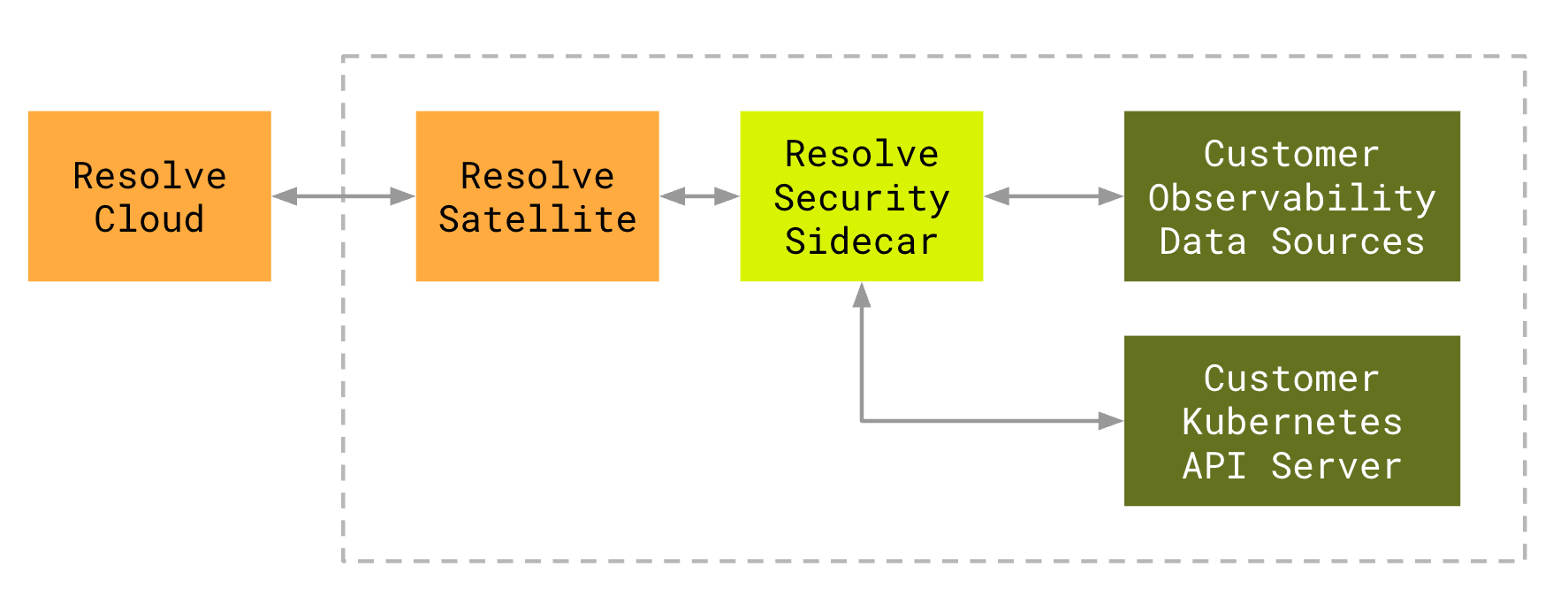
The **Security Sidecar** is a lightweight HTTP proxy container deployed alongside the [Resolve Satellite](/resolve-satellite) in the same pod. It provides two capabilities beyond what the ResolveAI web app offers by default:
1. **Secret resolution** — Resolves Kubernetes secrets into HTTP headers before requests leave the pod, so the satellite process never sees raw API keys
2. **Response redaction** — Strips sensitive data (credit cards, emails, SSNs, etc.) from API responses before the satellite processes them
3. **Auditable redaction logic** — Source code is available for review and customization (contact [help@resolve.ai](mailto:help@resolve.ai) to request access)
The sidecar image is publicly available on [Docker Hub](https://hub.docker.com/r/clouddatalabs/security-sidecar).
 ### How It Works
#### Secret Resolution
Integration credentials can be stored as placeholders (e.g., `$.load.DATADOG_API_KEY`) in the satellite's integration config instead of plain-text values.
1. The satellite sends outbound HTTP requests through the sidecar proxy running in the same pod
2. The sidecar detects headers containing the `$.load.` prefix
3. For each match, the sidecar resolves the actual secret value from a Kubernetes secret (injected as an environment variable or mounted as a file)
4. The sidecar replaces the placeholder with the resolved value and forwards the request to the target service
#### Response Redaction
On the return path, the sidecar applies regex-based redaction to API response bodies before they reach the satellite. This uses the same patterns listed in the [Redacted Data Patterns](#redacted-data-patterns) section above.
Redaction is enabled by default and controlled by the `ENABLE_REDACTION` environment variable.
### Prerequisites
1. The [Resolve Satellite](/resolve-satellite) is already installed in your environment
2. At least one on-prem integration is configured through the satellite
### Install the Security Sidecar
#### 1. Update Values File
Add the `sidecarProxy` block to your `resolve-values.yaml`:
```yaml resolve-values.yaml theme={null}
ingest:
token:
clusterName:
environment:
# Enable the security sidecar
httpApiClientProxyUrl: "http://localhost:8080"
sidecarProxy:
enableRedaction: "true"
container:
image:
repository: clouddatalabs/security-sidecar
tag: v13
pullPolicy: Always
resources:
limits:
cpu: 1
memory: 8Gi
requests:
cpu: 1
memory: 8Gi
```
#### 2. Configure Secrets
Use `secretKeyRefs` to make Kubernetes secret values available to the sidecar. Each entry maps a key from a Kubernetes secret to an environment variable name that corresponds to a `$.load.` placeholder in your integration config.
For example, to resolve Datadog API and App keys:
```yaml resolve-values.yaml theme={null}
sidecarProxy:
secretsConfig:
secretKeyRefs:
- envName: DATADOG_API_KEY
secretName: datadog-resolve-token
secretKey: apiKey
- envName: DATADOG_APP_KEY
secretName: datadog-resolve-token
secretKey: appKey
```
With this config, a header containing `$.load.DATADOG_API_KEY` in the satellite's integration config will be resolved to the value of the `apiKey` key in the `datadog-resolve-token` Kubernetes secret. The satellite itself never sees the raw credential.
As an alternative to environment variable injection, secrets can be mounted as files. This may be preferable when using external secret store CSI drivers, or to prevent secrets from appearing in the container's environment (e.g., `kubectl describe pod` output).
The secret keys must match the `$.load` placeholders exactly.
First, create the Kubernetes secret. The key names must match the `$.load` placeholders you use in your integration config:
```yaml datadog-resolve-token.yaml theme={null}
apiVersion: v1
kind: Secret
type: Opaque
metadata:
name: datadog-resolve-token
stringData:
DATADOG_API_KEY: ""
DATADOG_APP_KEY: ""
```
Then mount it in your `resolve-values.yaml`:
```yaml resolve-values.yaml theme={null}
sidecarProxy:
secretsConfig:
mountPath: "/etc/secrets"
secretMounts:
- name: datadog-creds
mountPath: /etc/secrets
# You must also define the corresponding volumes.
# The volume name MUST match the pattern: sidecar-
volumes:
- name: sidecar-datadog-creds
secret:
secretName: datadog-resolve-token
```
The integration config uses the same `$.load.DATADOG_API_KEY` and `$.load.DATADOG_APP_KEY` placeholders as the environment variable approach.
#### 3. Apply Changes
Update the satellite with the new `resolve-values.yaml` file.
```shell theme={null}
helm upgrade --install resolve-satellite \
oci://registry-1.docker.io/resolveaihq/satellite-chart \
--values resolve-values.yaml
```
#### 4. Verify the Sidecar is Running
Confirm that the pod has two containers (`satellite` and `sidecar-proxy`):
```shell theme={null}
kubectl get pods -l app.kubernetes.io/name=satellite -o jsonpath='{.items[*].spec.containers[*].name}'
```
You should see output containing both container names. You can also check the sidecar logs:
```shell theme={null}
kubectl logs -c sidecar-proxy
```
### Full Example
Below is a complete `resolve-values.yaml` that enables the sidecar with secret resolution for a Datadog on-prem integration:
```yaml resolve-values.yaml theme={null}
ingest:
token:
clusterName: prod-main
environment: production
httpApiClientProxyUrl: "http://localhost:8080"
sidecarProxy:
enableRedaction: "true"
container:
image:
repository: clouddatalabs/security-sidecar
tag: v13
pullPolicy: Always
resources:
limits:
cpu: 1
memory: 8Gi
requests:
cpu: 1
memory: 8Gi
secretsConfig:
secretKeyRefs:
- envName: DATADOG_API_KEY
secretName: datadog-resolve-token
secretKey: apiKey
- envName: DATADOG_APP_KEY
secretName: datadog-resolve-token
secretKey: appKey
integrations:
datadogOnPrem:
type: datadog
create: true
secretName: datadog-resolve-token
connection:
site: datadoghq.com
serviceMapEnabled: true
redactionConfig:
enabled: true
```
### How It Works
#### Secret Resolution
Integration credentials can be stored as placeholders (e.g., `$.load.DATADOG_API_KEY`) in the satellite's integration config instead of plain-text values.
1. The satellite sends outbound HTTP requests through the sidecar proxy running in the same pod
2. The sidecar detects headers containing the `$.load.` prefix
3. For each match, the sidecar resolves the actual secret value from a Kubernetes secret (injected as an environment variable or mounted as a file)
4. The sidecar replaces the placeholder with the resolved value and forwards the request to the target service
#### Response Redaction
On the return path, the sidecar applies regex-based redaction to API response bodies before they reach the satellite. This uses the same patterns listed in the [Redacted Data Patterns](#redacted-data-patterns) section above.
Redaction is enabled by default and controlled by the `ENABLE_REDACTION` environment variable.
### Prerequisites
1. The [Resolve Satellite](/resolve-satellite) is already installed in your environment
2. At least one on-prem integration is configured through the satellite
### Install the Security Sidecar
#### 1. Update Values File
Add the `sidecarProxy` block to your `resolve-values.yaml`:
```yaml resolve-values.yaml theme={null}
ingest:
token:
clusterName:
environment:
# Enable the security sidecar
httpApiClientProxyUrl: "http://localhost:8080"
sidecarProxy:
enableRedaction: "true"
container:
image:
repository: clouddatalabs/security-sidecar
tag: v13
pullPolicy: Always
resources:
limits:
cpu: 1
memory: 8Gi
requests:
cpu: 1
memory: 8Gi
```
#### 2. Configure Secrets
Use `secretKeyRefs` to make Kubernetes secret values available to the sidecar. Each entry maps a key from a Kubernetes secret to an environment variable name that corresponds to a `$.load.` placeholder in your integration config.
For example, to resolve Datadog API and App keys:
```yaml resolve-values.yaml theme={null}
sidecarProxy:
secretsConfig:
secretKeyRefs:
- envName: DATADOG_API_KEY
secretName: datadog-resolve-token
secretKey: apiKey
- envName: DATADOG_APP_KEY
secretName: datadog-resolve-token
secretKey: appKey
```
With this config, a header containing `$.load.DATADOG_API_KEY` in the satellite's integration config will be resolved to the value of the `apiKey` key in the `datadog-resolve-token` Kubernetes secret. The satellite itself never sees the raw credential.
As an alternative to environment variable injection, secrets can be mounted as files. This may be preferable when using external secret store CSI drivers, or to prevent secrets from appearing in the container's environment (e.g., `kubectl describe pod` output).
The secret keys must match the `$.load` placeholders exactly.
First, create the Kubernetes secret. The key names must match the `$.load` placeholders you use in your integration config:
```yaml datadog-resolve-token.yaml theme={null}
apiVersion: v1
kind: Secret
type: Opaque
metadata:
name: datadog-resolve-token
stringData:
DATADOG_API_KEY: ""
DATADOG_APP_KEY: ""
```
Then mount it in your `resolve-values.yaml`:
```yaml resolve-values.yaml theme={null}
sidecarProxy:
secretsConfig:
mountPath: "/etc/secrets"
secretMounts:
- name: datadog-creds
mountPath: /etc/secrets
# You must also define the corresponding volumes.
# The volume name MUST match the pattern: sidecar-
volumes:
- name: sidecar-datadog-creds
secret:
secretName: datadog-resolve-token
```
The integration config uses the same `$.load.DATADOG_API_KEY` and `$.load.DATADOG_APP_KEY` placeholders as the environment variable approach.
#### 3. Apply Changes
Update the satellite with the new `resolve-values.yaml` file.
```shell theme={null}
helm upgrade --install resolve-satellite \
oci://registry-1.docker.io/resolveaihq/satellite-chart \
--values resolve-values.yaml
```
#### 4. Verify the Sidecar is Running
Confirm that the pod has two containers (`satellite` and `sidecar-proxy`):
```shell theme={null}
kubectl get pods -l app.kubernetes.io/name=satellite -o jsonpath='{.items[*].spec.containers[*].name}'
```
You should see output containing both container names. You can also check the sidecar logs:
```shell theme={null}
kubectl logs -c sidecar-proxy
```
### Full Example
Below is a complete `resolve-values.yaml` that enables the sidecar with secret resolution for a Datadog on-prem integration:
```yaml resolve-values.yaml theme={null}
ingest:
token:
clusterName: prod-main
environment: production
httpApiClientProxyUrl: "http://localhost:8080"
sidecarProxy:
enableRedaction: "true"
container:
image:
repository: clouddatalabs/security-sidecar
tag: v13
pullPolicy: Always
resources:
limits:
cpu: 1
memory: 8Gi
requests:
cpu: 1
memory: 8Gi
secretsConfig:
secretKeyRefs:
- envName: DATADOG_API_KEY
secretName: datadog-resolve-token
secretKey: apiKey
- envName: DATADOG_APP_KEY
secretName: datadog-resolve-token
secretKey: appKey
integrations:
datadogOnPrem:
type: datadog
create: true
secretName: datadog-resolve-token
connection:
site: datadoghq.com
serviceMapEnabled: true
redactionConfig:
enabled: true
```