> ## Documentation Index
> Fetch the complete documentation index at: https://docs.resolve.ai/llms.txt
> Use this file to discover all available pages before exploring further.
# Splunk Observability
This guide explains how to connect ResolveAI with Splunk Observability Cloud. Resolve uses this connection to ingest metrics, logs, dashboards and traces for incident investigations.
## 1. Create Org Access Token
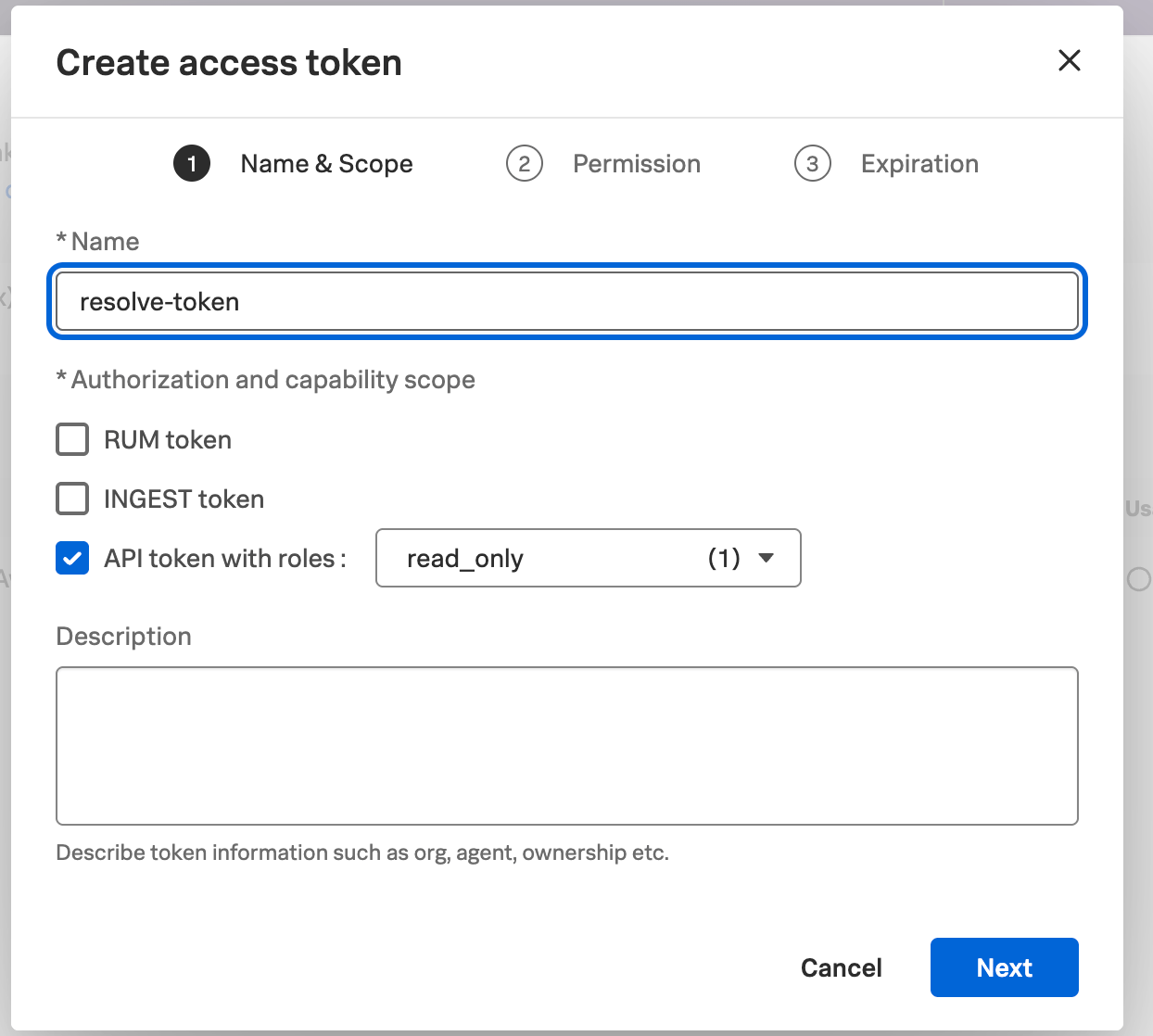
In Splunk Observability Cloud, create an [**Org Access Token with API Permissions**](https://help.splunk.com/en/splunk-observability-cloud/administer/authentication-and-security/authentication-tokens/org-access-tokens).
1. Log in to Splunk Observability Cloud
2. Click **Settings** in the left navigation
3. Select **Access Tokens** under the Organization Settings section
4. Click **Create Token**
5. Under the **Name and Scope** tab:
* Set the name to `resolve-token` or another appropriate name
* Select **API Token with Roles** with `read_only` as the token scope
* Click **Next**
6. Under the **Permissions** tab:
* Set the appropriate access token permission, `Only Admins can read` is the default
* Click **Next**
7. Under the **Expiration** tab:
* Set the appropriate end date (1 year is recommended)
* Click **Create**
8. Click **Copy** to copy the token value and save it securely
## 2. Connect Splunk Observability
Set up the integration either in the **Resolve UI** or in the **Satellite** configuration.
### Connect Via Resolve UI
1. Open [Splunk Observability Integration](https://app0.resolve.ai/integrations/splunkObservability/connect) in Resolve
2. Click **Add Connection**
3. Enter a name (ex. `Splunk-Observability-Main`)
4. Leave **Environments** blank to ingest data from all environments, or list specific ones that match your Satellite config
5. Paste your **Org Access Token** from Step 1
6. Enter your **Realm** (ex. `us0`, `us1`, `eu0`, etc.)
* Your realm is visible in your Splunk Observability URL: `app..signalfx.com`
7. (Optional) Enable [Sensitive Data Redaction](/sensitive-data-redaction)
8. Turn on the toggle **Service Map Enabled**
9. Click **Save**
### Connect Via Satellite
Save the Splunk Observability Org Access Token in a Kubernetes secret, then update the Resolve Satellite to use this secret.
#### 1. Create Kubernetes Secret
Create a Kubernetes secret using this structure.
```yaml secret creation theme={null}
apiVersion: v1
kind: Secret
type: Opaque
metadata:
name: splunk-observability-resolve-token
stringData:
token: ""
```
**Security Best Practice:** Never store credentials in plaintext in configuration files or source control.
Always use Kubernetes secrets and encrypt etcd or use enterprise secret management systems.
See [Secret Management](/secret-management) for detailed guidance.
Apply the secret.
```shell apply secret theme={null}
kubectl apply -f splunk-observability-resolve-token.yml
```
***
#### 2. Update Values File
Add the Splunk Observability integration to `resolve-values.yaml`.
```yaml resolve-values.yaml theme={null}
integrations:
splunkObservability:
type: "splunkObservability"
create: true
secretName: "splunk-observability-resolve-token"
connection:
realm: "us0" # Replace with your realm (us0, us1, eu0, etc.)
```
(Optional) Add [sensitive data redaction](/sensitive-data-redaction) with `redactionConfig`.
```yaml resolve-values.yaml theme={null}
integrations:
splunkObservability:
type: "splunkObservability"
create: true
secretName: "splunk-observability-resolve-token"
connection:
realm: "us0" # Replace with your realm
redactionConfig:
enabled: true
```
***
#### 3. Apply Changes
Update the satellite with the new `resolve-values.yaml` file.
```shell theme={null}
helm upgrade --install resolve-satellite \
oci://registry-1.docker.io/resolveaihq/satellite-chart \
--values resolve-values.yaml
```
***
#### 4. Verify Integration
Open [Splunk Observability Integration](https://app0.resolve.ai/integrations/splunkObservability/connect) and check the connection.
***