> ## Documentation Index
> Fetch the complete documentation index at: https://docs.resolve.ai/llms.txt
> Use this file to discover all available pages before exploring further.
# Sumologic
The Sumologic integration can be configured via Resolve's UI or on the [Resolve Satellite](/resolve-satellite).
**Private Network Access?** If your Sumo Logic instance requires private network access, you can use the [Resolve Satellite](/resolve-satellite) to securely proxy queries. See the [Satellite Setup](#connect-via-satellite) section below.
## Prerequisite
You will need a Sumologic API Endpoint. Your API Endpoint depends on your Sumologic deployment: [https://help.sumologic.com/docs/api/getting-started/#sumo-logic-endpoints-by-deployment-and-firewall-security](https://help.sumologic.com/docs/api/getting-started/#sumo-logic-endpoints-by-deployment-and-firewall-security)
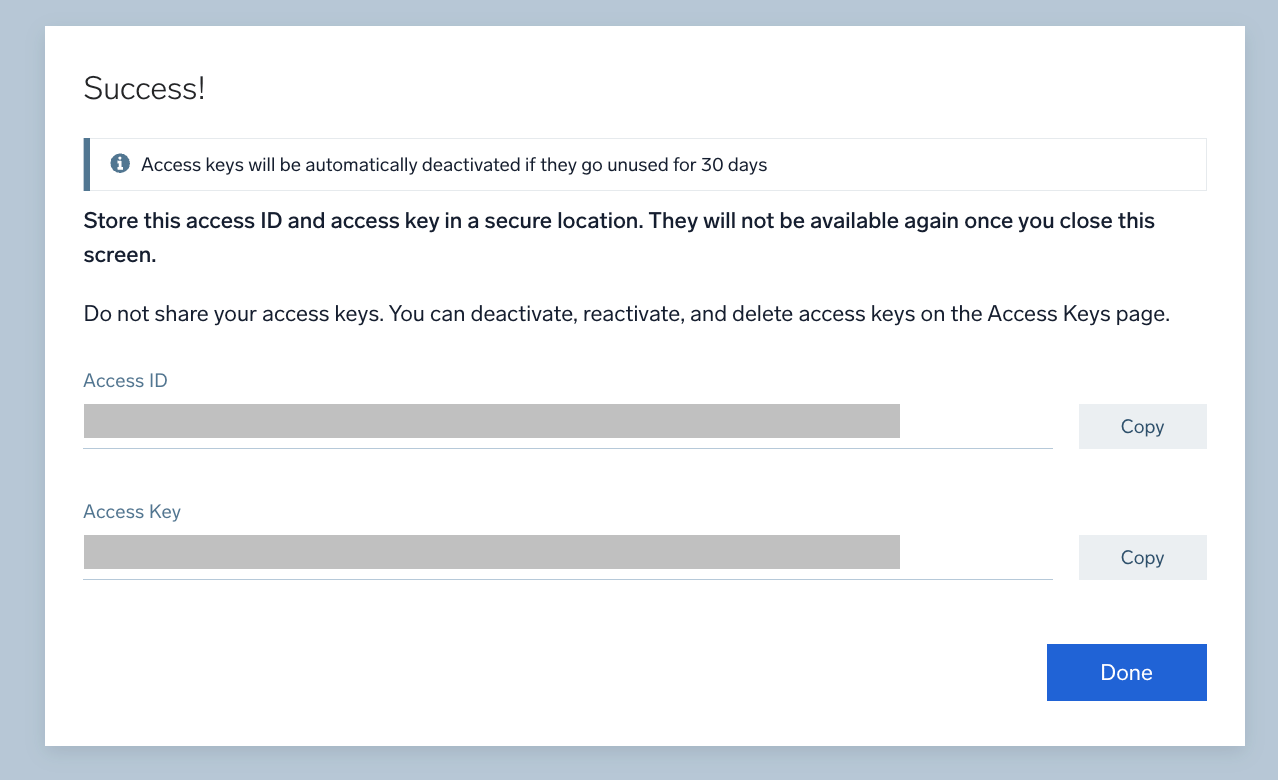
You also need a Sumologic Access ID and Access Key. Follow the instructions from the official Sumologic documentation for how to generate them: [https://help.sumologic.com/docs/manage/security/access-keys/#create-an-access-key](https://help.sumologic.com/docs/manage/security/access-keys/#create-an-access-key)
Ensure that at least the following scopes are granted to the token: Run Log Search, Run Metric Search, View Monitors.
If you plan to use [Mitigation Actions](/mitigation-actions) to create muting schedules during investigations, also ensure write access to the Muting Schedules API.
Ensure you copy and save the Access ID and Access Key to enter it in the Resolve UI.
 ## Setup the Sumologic integration in ResolveAI
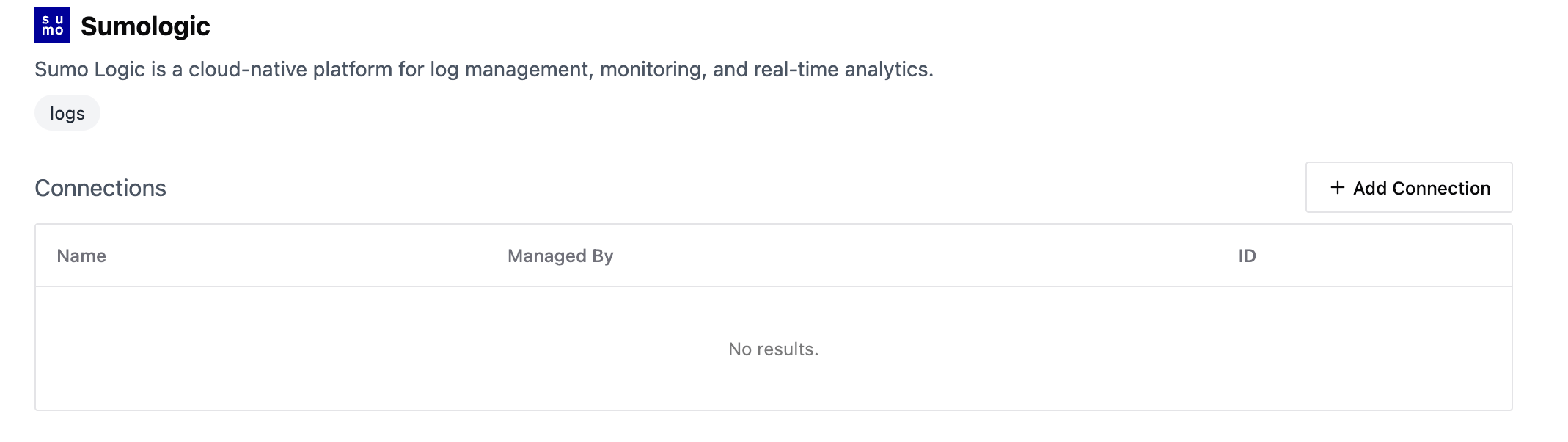
Login to [https://app0.resolve.ai](https://app0.resolve.ai). In the sidebar, select "Integrations"
Select "**Sumologic**" from the list. Click "Add Connection" at the top right.
## Setup the Sumologic integration in ResolveAI
Login to [https://app0.resolve.ai](https://app0.resolve.ai). In the sidebar, select "Integrations"
Select "**Sumologic**" from the list. Click "Add Connection" at the top right.
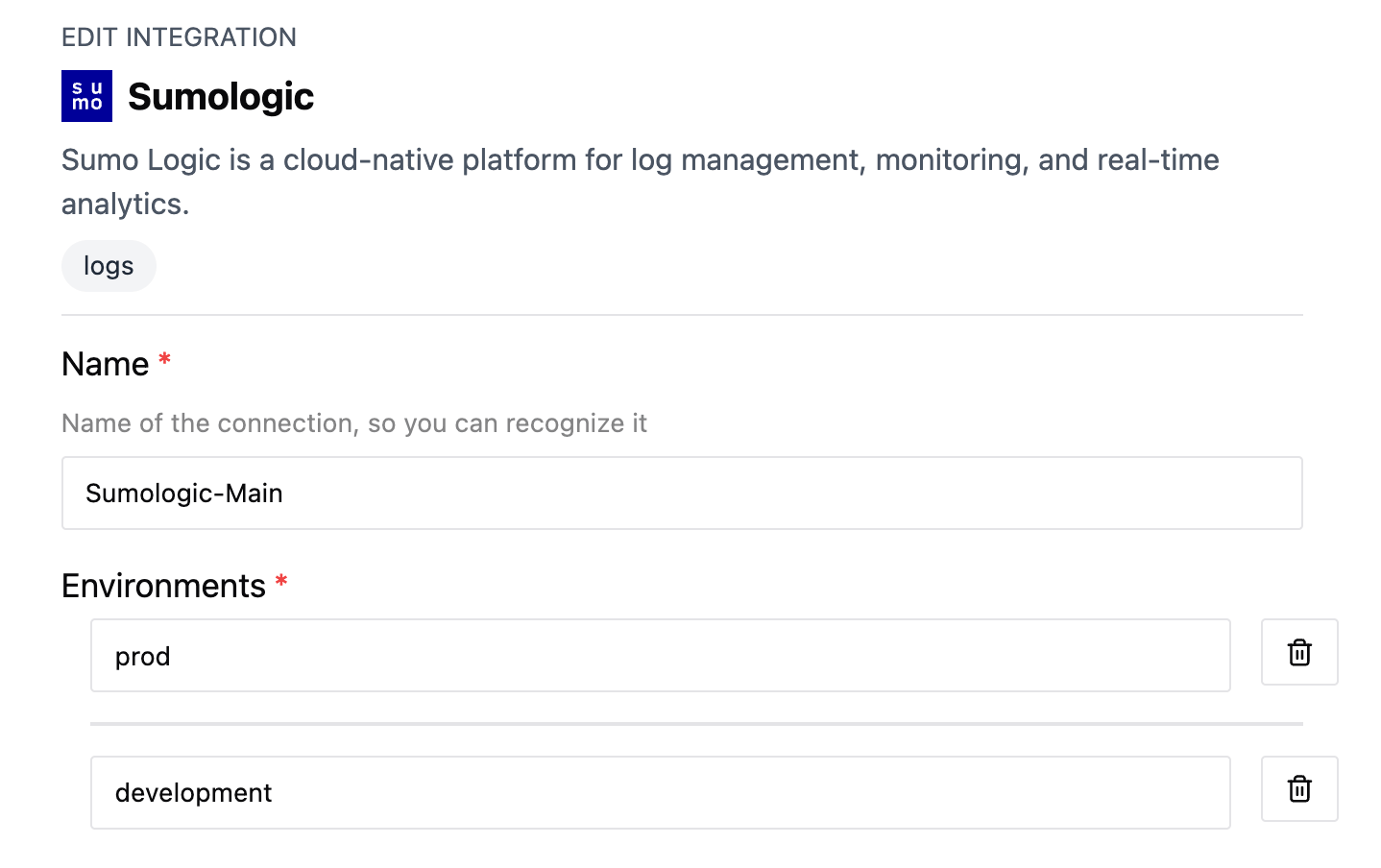
 Give the integration a name, e.g.: Sumologic-Main
Enter the environments as specified in the Resolve Satellite installation that the integeration will map to.
Each environment should be entered in a separate row.
Give the integration a name, e.g.: Sumologic-Main
Enter the environments as specified in the Resolve Satellite installation that the integeration will map to.
Each environment should be entered in a separate row.
 Put the **API Endpoint**, **Access ID** and **Access Key** from the previous step. Select your SumoLogic API Endpoint from the dropdown.
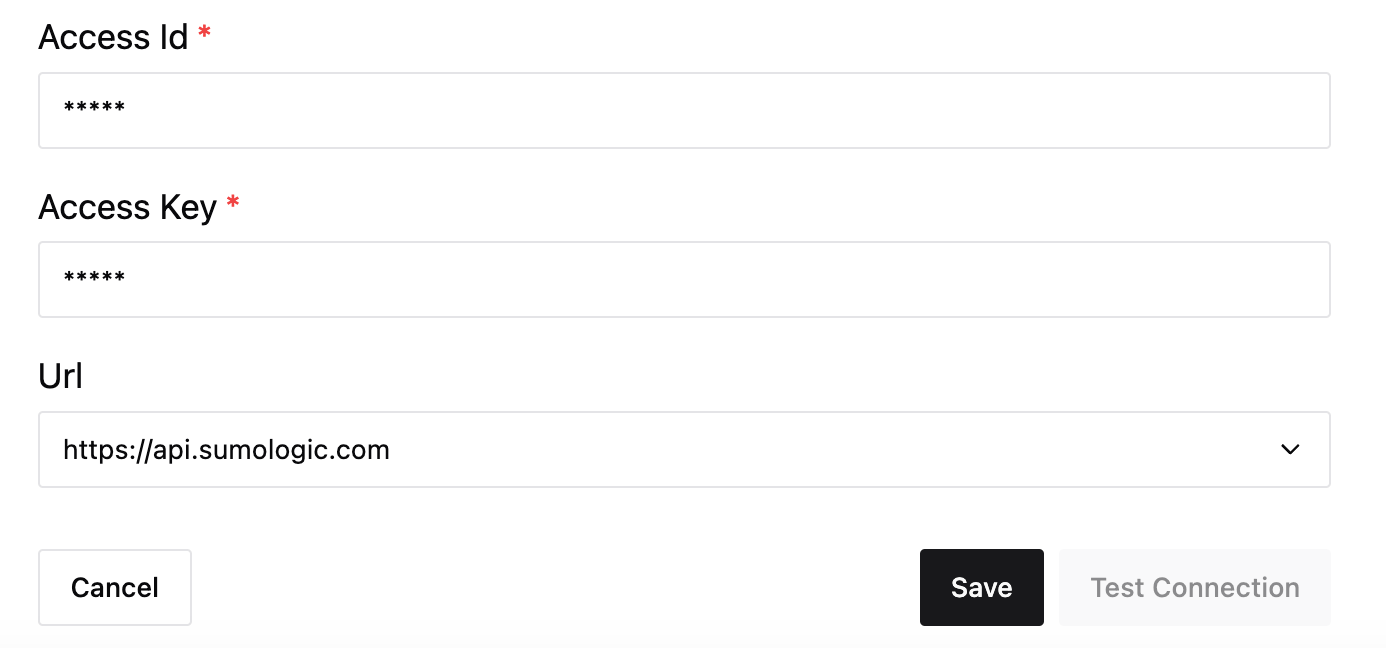 Click "Save".
***
## Connect Via Satellite
If your Sumo Logic instance requires private network access, use the [Resolve Satellite](/resolve-satellite) to securely proxy queries.
**Prerequisite**: The Resolve Satellite should already be installed in your environment. See [Resolve Satellite](/resolve-satellite) for installation instructions.
### 1. Create Kubernetes Secret
Create a Kubernetes secret containing your Sumo Logic credentials.
```yaml secret creation theme={null}
apiVersion: v1
kind: Secret
type: Opaque
metadata:
name: sumologic-resolve-credentials
stringData:
accessId: ""
accessKey: ""
```
Apply the secret:
```shell apply secret theme={null}
kubectl apply -f sumologic-resolve-credentials.yml
```
### 2. Update Values File
Add the Sumo Logic integration to your `resolve-values.yaml`:
```yaml resolve-values.yaml theme={null}
integrations:
sumologicOnPrem:
type: sumologic
create: true
secretName: "sumologic-resolve-credentials"
connection:
url: "https://api.us2.sumologic.com" # Your Sumo Logic API endpoint
```
### 3. Apply Changes
Update the satellite with the new configuration:
```shell theme={null}
helm upgrade --install resolve-satellite \
oci://registry-1.docker.io/resolveaihq/satellite-chart \
--values resolve-values.yaml
```
### 4. Verify Integration
Open the [Sumo Logic Integration](https://app0.resolve.ai/integrations/sumologic) page in Resolve to verify the connection.
Click "Save".
***
## Connect Via Satellite
If your Sumo Logic instance requires private network access, use the [Resolve Satellite](/resolve-satellite) to securely proxy queries.
**Prerequisite**: The Resolve Satellite should already be installed in your environment. See [Resolve Satellite](/resolve-satellite) for installation instructions.
### 1. Create Kubernetes Secret
Create a Kubernetes secret containing your Sumo Logic credentials.
```yaml secret creation theme={null}
apiVersion: v1
kind: Secret
type: Opaque
metadata:
name: sumologic-resolve-credentials
stringData:
accessId: ""
accessKey: ""
```
Apply the secret:
```shell apply secret theme={null}
kubectl apply -f sumologic-resolve-credentials.yml
```
### 2. Update Values File
Add the Sumo Logic integration to your `resolve-values.yaml`:
```yaml resolve-values.yaml theme={null}
integrations:
sumologicOnPrem:
type: sumologic
create: true
secretName: "sumologic-resolve-credentials"
connection:
url: "https://api.us2.sumologic.com" # Your Sumo Logic API endpoint
```
### 3. Apply Changes
Update the satellite with the new configuration:
```shell theme={null}
helm upgrade --install resolve-satellite \
oci://registry-1.docker.io/resolveaihq/satellite-chart \
--values resolve-values.yaml
```
### 4. Verify Integration
Open the [Sumo Logic Integration](https://app0.resolve.ai/integrations/sumologic) page in Resolve to verify the connection.