> ## Documentation Index
> Fetch the complete documentation index at: https://docs.resolve.ai/llms.txt
> Use this file to discover all available pages before exploring further.
# VictoriaLogs
Connect ResolveAI to VictoriaMetrics to query logs either from the Cloud UI for from the [Resolve Satellite](/resolve-satellite).
## Connect from the Resolve UI
1. Log in to the ResolveAI app [https://app0.resolve.ai](https://app0.resolve.ai)
2. Open the integrations page [https://app0.resolve.ai/integrations](https://app0.resolve.ai/integrations)
3. Click **Add Connection**
4. **Name** the connection, ex `Production VictoriaLogs`
5. Pick **Environments** Resolve should query, ex. `production` and `staging`
6. Enter the **URL** for your VictoriaMetrics instance
7. Optional: Use **Advanced Settings** to specify authentication details
Recommended:
1. In VictoriaMetrics, create a read-only API key.
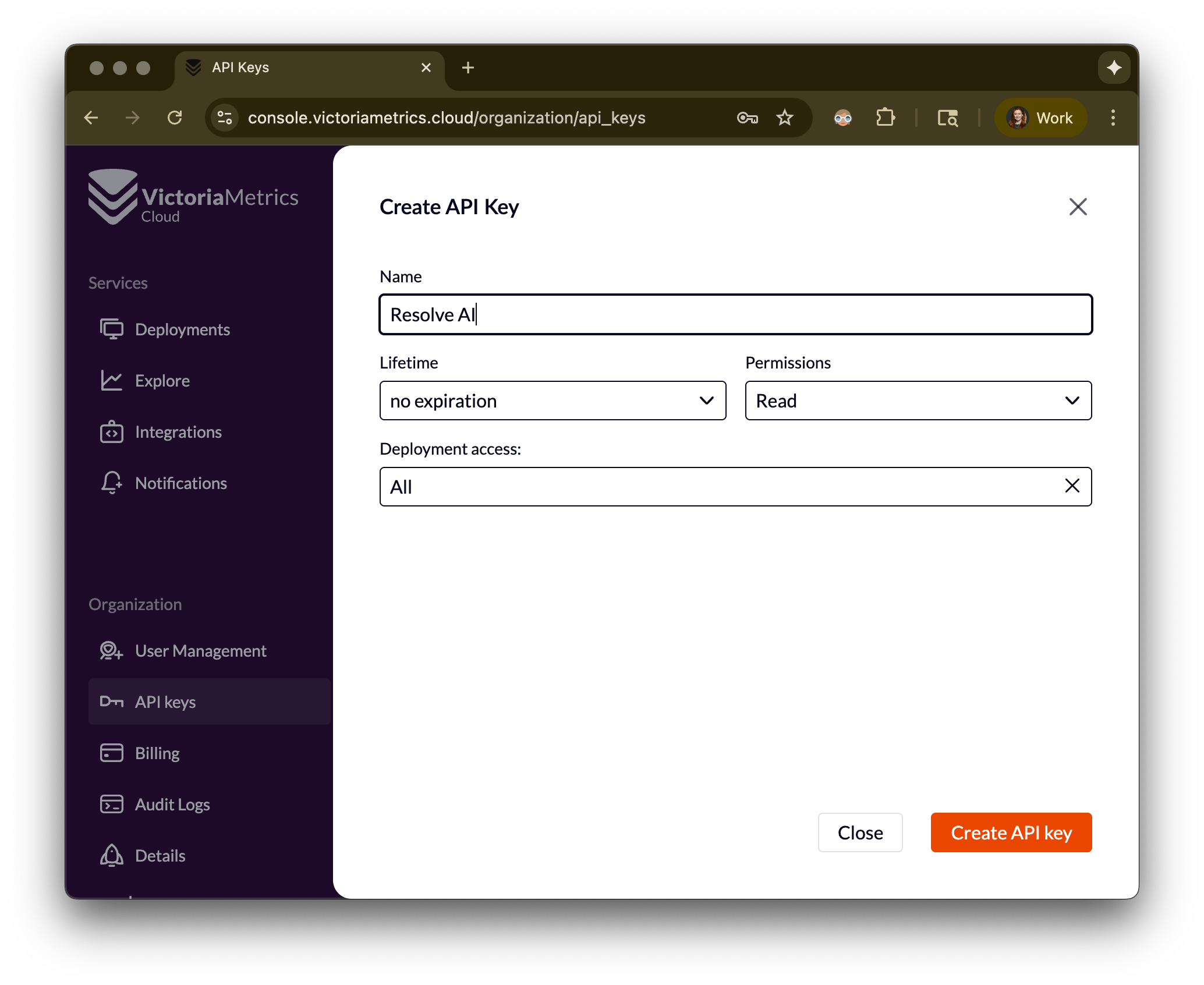
2. In ResolveAI open [VictoriaLogs](https://app0.resolve.ai/integrations/victoriaLogs/connect), click Edit, and open Advanced Settings.
3. **Auth Type** pick `bearer`.
4. **Token** enter your API key.
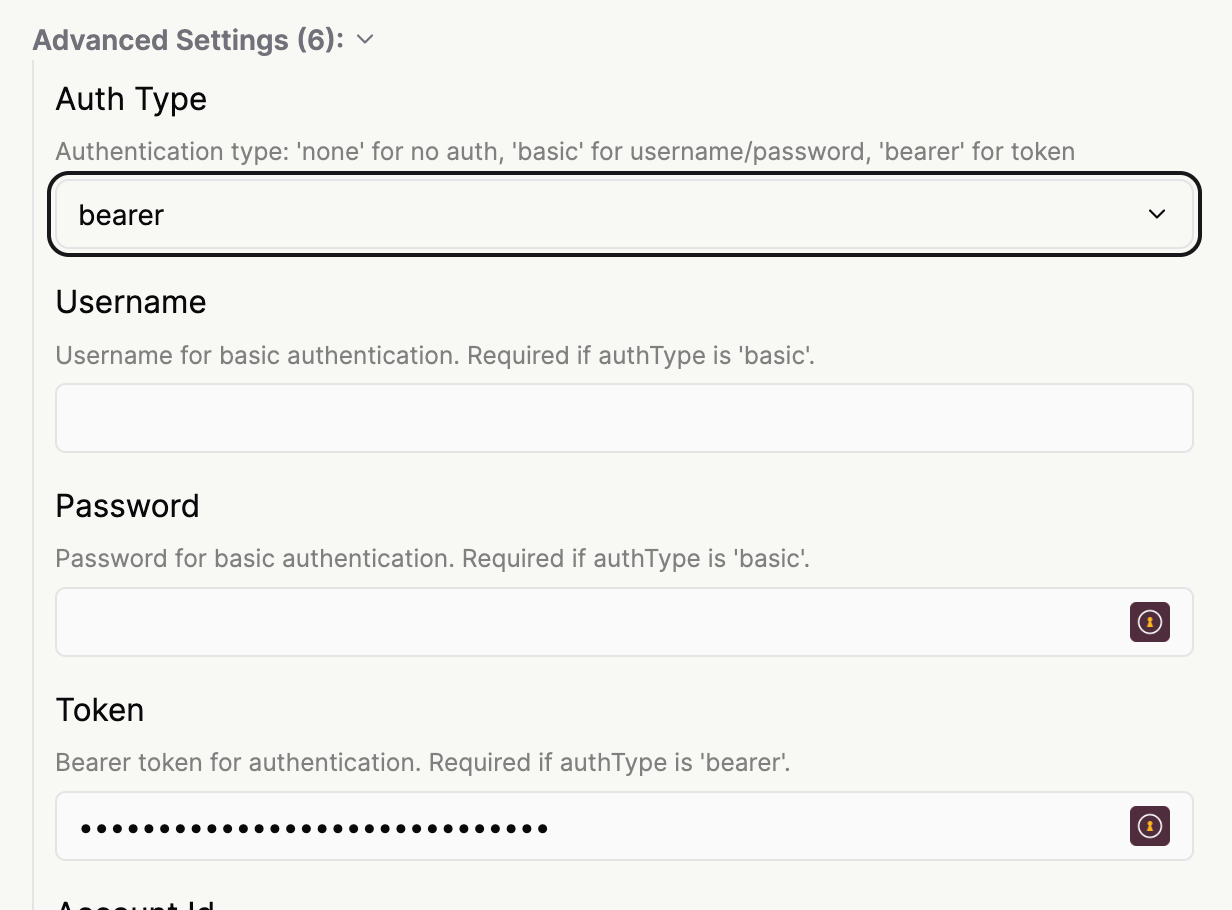
5. Click Save at the bottom of the page.
## Connect from the Resolve Satellite
Before setting up this integration, ensure the [Resolve Satellite](/resolve-satellite) is installed in your environment.
Below is an example of how to setup the integration in the satellite with a Kubernetes secret (potentially backed by an AWS secret manager or another mechanism) for authentication if you are running VictoriaMetrics Enterprise.
Update your helm values override file with the following information (e.g.: *resolve-values.yaml*)
```yaml resolve-values.yaml theme={null}
integrations:
victoriaMetricsIntegration:
type: prometheus
create: true
connection:
url: ""
```
Install the satellite and apply the values from the yaml file that you have just updated. e.g.: *resolve-values.yaml.* To find the latest version, visit ResolveAI's docker hub repository for the [helm chart](https://hub.docker.com/r/resolveaihq/satellite-chart/tags) and [satellite image](https://hub.docker.com/r/resolveaihq/satellite/tags).
```shell apply config to satellite and redeploy theme={null}
helm upgrade --install oci://registry-1.docker.io/resolveaihq/satellite-chart --version --values resolve-values.yaml --set image.tag=
```
Once your satellite is deployed, we will automatically create an integration instance for you.
Login to [https://app0.resolve.ai/](https://app0.resolve.ai/). Go to the integrations page and and select “Prometehus”
You should see an automatically created integration based on the provided configuration.
## Authentication for VictoriaMetrics Enterprise
**Note:** If you are using VictoriaMetrics Enterprise follow the example below, to setup an auth token for the integration.
Create a Kubernetes secret of the following form. Note that the structure of the secret is important. Set the top-level key "token" and put your actual token in the value.
```yaml secret creation theme={null}
apiVersion: v1
kind: Secret
type: Opaque
metadata:
name: vm-resolve-access-token
stringData:
token: ""
```
**Security Best Practice:** Never store credentials in plaintext in configuration files or source control.
Always use Kubernetes secrets and encrypt etcd or use enterprise secret management systems.
See [Secret Management](/secret-management) for detailed guidance.
To apply the secret run
```shell apply secret theme={null}
kubectl apply -f vm-resolve-access-token.yml
```
Update your helm values override file with the following information (e.g.: *resolve-values.yaml*)
```yaml resolve-values.yaml theme={null}
integrations:
victoriaMetricsIntegration:
type: prometheus
create: true
connection:
url: ""
```