

Prerequisite: Check that you can access the Integrations Page in ResolveAI. You’ll need to be an admin for your organization to visit this page and make changes.
1. In Resolve, create a webhook
- Open the Integrations Page
- Click Alert Webhook
- Click Add Connection
-
Add a Name for your new webhook
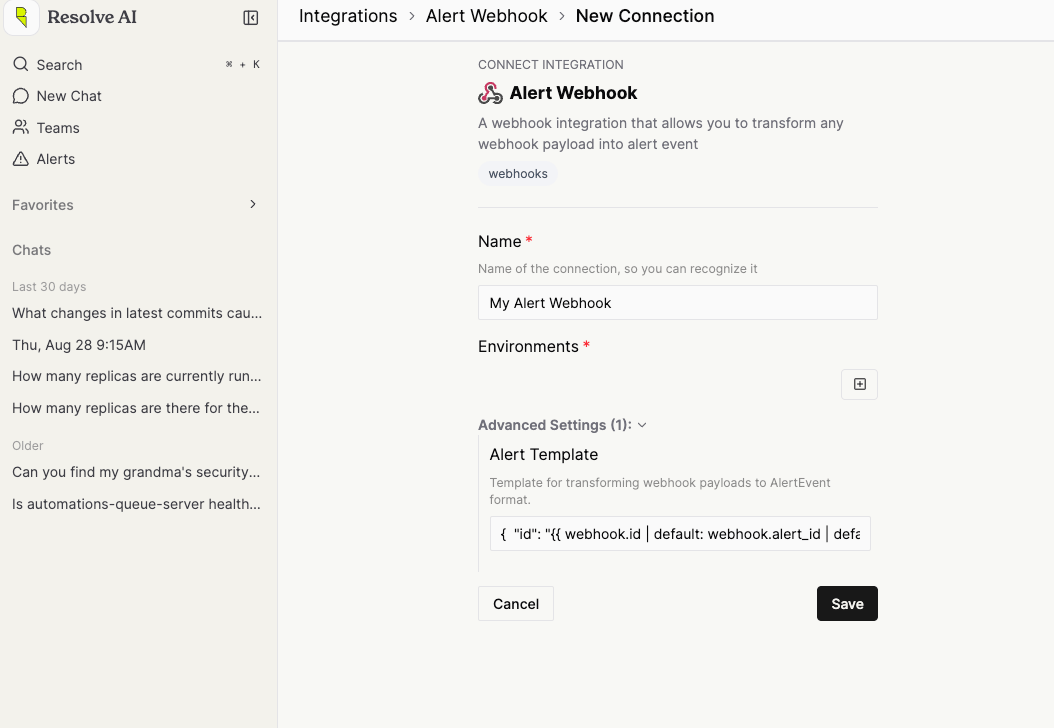
- Click Save
- Click the Name to re-open the integration instance.
- Click Edit
-
Click
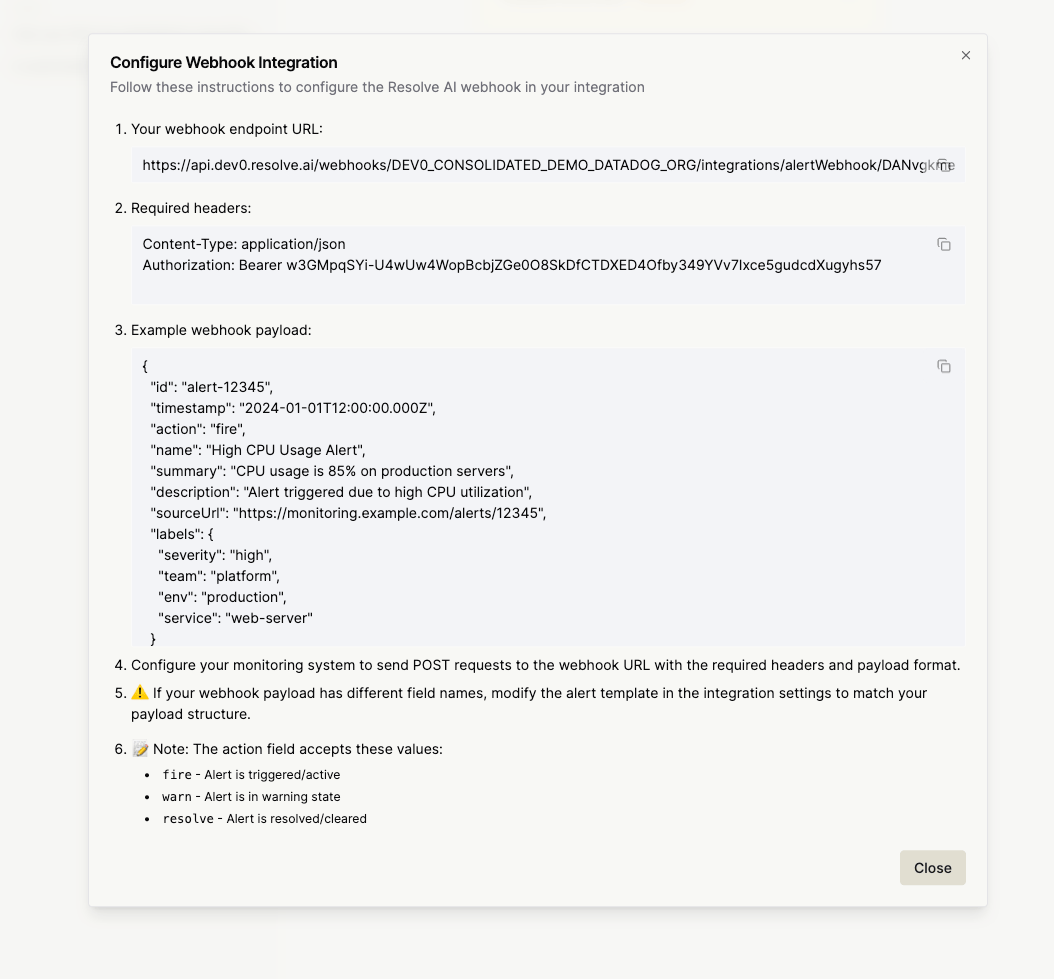
+under Webhooks to create a new webhook. This will show custom generate instructions, with secrets unique to this webhook. Note: Ensure you finish the instructions before closing, or you will have to create a new webhook. -
Configure your monitoring system to
POSTto the Endpoint URL with the Required Headers Bearer token:- Either in the headers:
Authorization: Bearer <yourIngestToken> - As query params:
url?token=<yourIngestToken>
- Either in the headers:
-
Enable Integration: Switch the webhook on and manage webhook tokens from the post-setup view
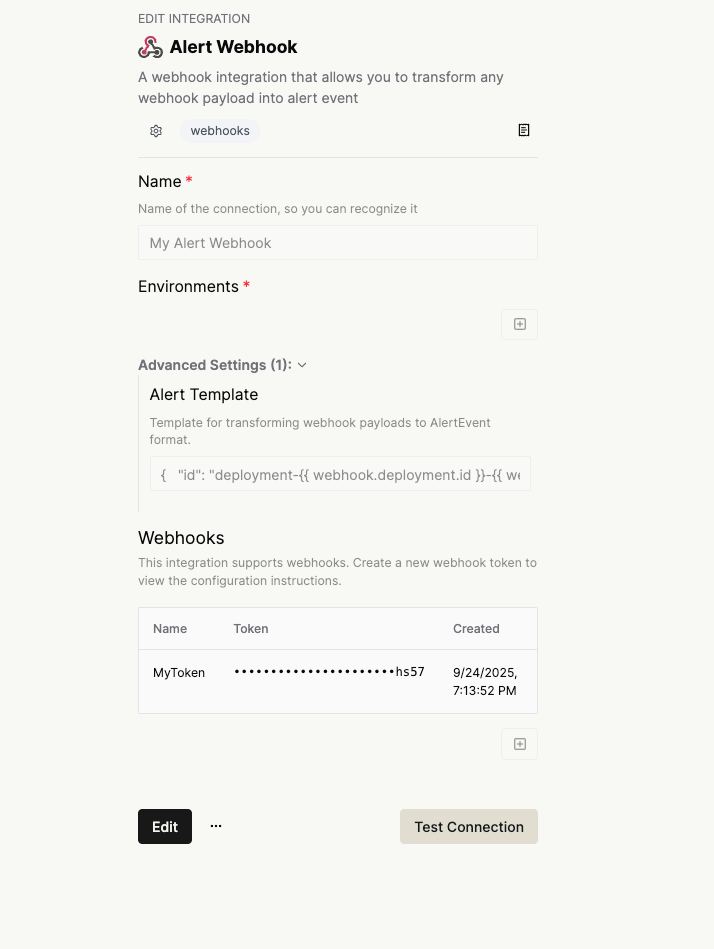
Alert Template Configuration
The alert template uses template syntax to transform incoming webhook payloads. The template should output valid JSON that matches the AlertEvent schema.Required Fields
Your template must include these required fields:id: Unique identifier for the alerttime: Timestamp in ISO8601 formataction: One of “fire”, “warn”, or “resolve”
Template Context
Templates have access to:webhook: The incoming webhook payloadnow: Current timestamp in ISO8601 format
Example Template
Custom Filters
Use custom filters to transform the data you send via webhook:Type Conversion Filters
to_number: Converts values to numbers, defaults to 0 for invalid valuesto_boolean: Converts values to boolean (handles “true”/“1” as true)iso8601: Converts date values to ISO8601 format, falls back to current time
Data Processing Filters
regex_extract: Extracts text using regex patternsjson: Serializes values to JSON stringsdefault: Provides fallback values for empty/null fieldshash: Generates consistent hash values for creating alert IDsdate: Enhanced date filter with “now” keyword support
Filter Usage Example
Webhook Payload Examples
Basic Alert Payload
Custom Monitoring System Payload
Advanced Configuration
Custom Field Mapping
Map webhook fields to specific alert properties:Conditional Logic
Use conditionals for complex transformations:Array Processing for Labels
Avoid this if possible, as templates with loops cannot be health checked.
Troubleshooting
Common Issues
- “Missing required field” errors: Ensure id, time, and action are present in template output
- Invalid JSON output: Verify template produces valid JSON syntax
- Type conversion errors: Use appropriate filters for data type conversion
- Template rendering timeouts: Simplify complex templates or reduce payload size
Debugging Templates
- Use the template validation feature during configuration (Coming Soon)
- Test with sample webhook payloads (Coming Soon)
- Check health check results for validation errors
Integration with Monitoring Systems
The Alert Webhook integration can receive webhooks from various monitoring systems. Configure your monitoring system to send POST requests to the provided webhook URL with the Bearer token in the Authorization header. Supported webhook actions:fire: Alert is triggered/activewarn: Alert is in warning stateresolve: Alert is resolved/cleared