

Supported Features
Prerequisites
If your organization restricts third-party Teams apps, a Microsoft Teams admin will need to allow the app and grant admin consent. Otherwise, end users can install ResolveAI themselves from the Microsoft Teams app marketplace.Installation
Step 1: Install ResolveAI from the Teams app marketplace
Install the ResolveAI app from the Microsoft Teams app marketplace.Step 2: Grant admin consent
A Microsoft Teams admin must grant consent for the permissions ResolveAI requires:- Go to the Teams Admin Center
- Open the ResolveAI app details page under Teams Apps
- Click Grant admin consent
Step 3: Add ResolveAI to a channel or group chat
You can add ResolveAI in two ways:- In a channel: Click the [ + ] icon to search for and add the ResolveAI app
- In a group chat: Click Add agents and bots and select ResolveAI
It may take a few minutes for the bot to appear.
Step 4: Configure the channel
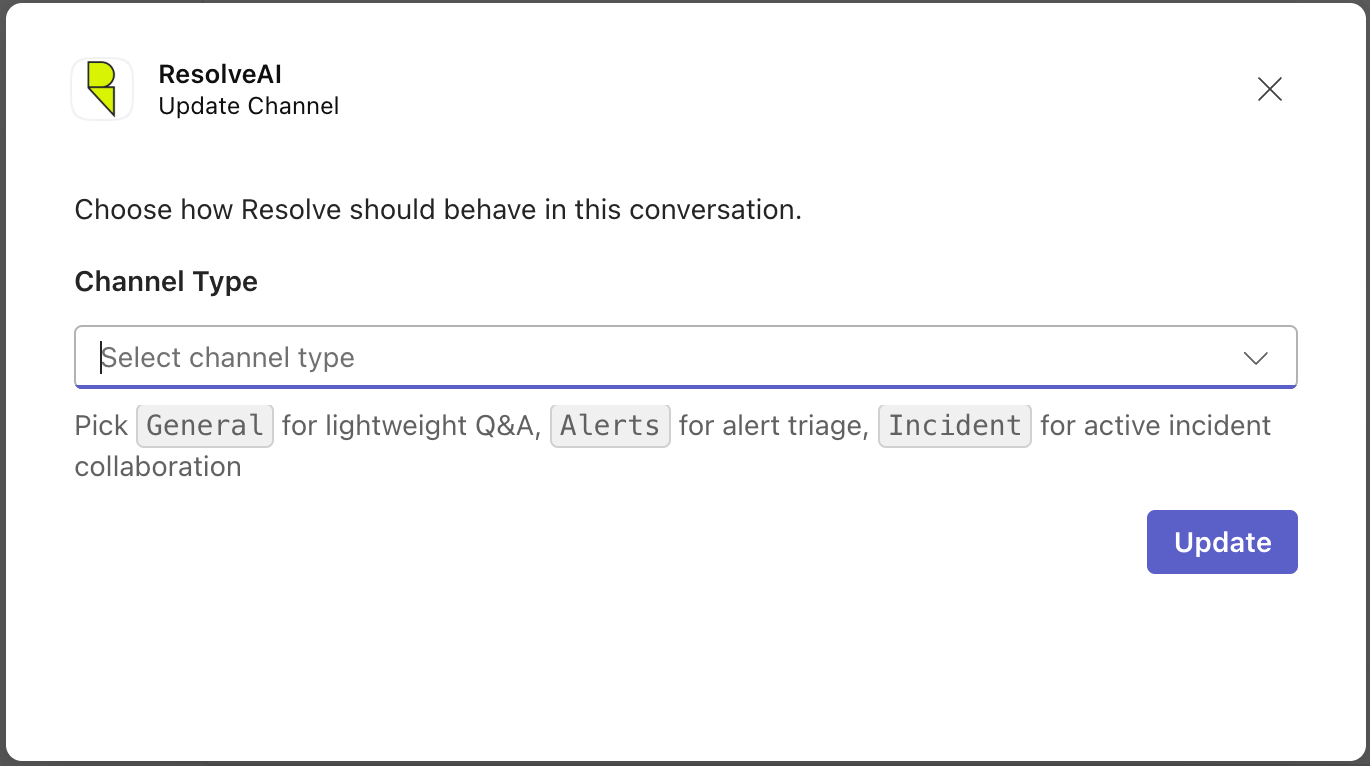
When ResolveAI is added, it posts a welcome card with a Configure Channel button.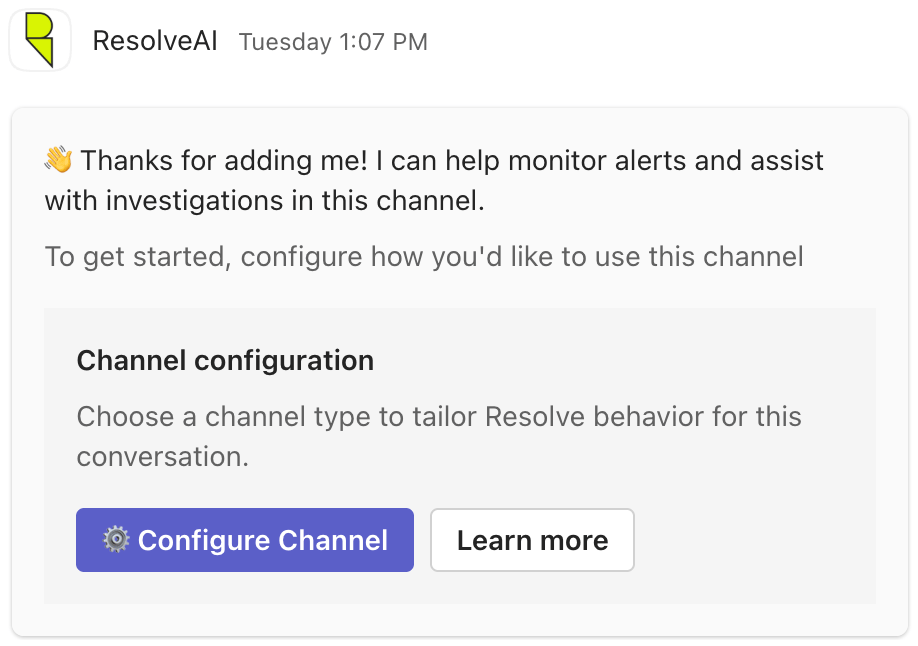
- General — @-mention Resolve to ask questions in any team channel
- Alerts — Resolve proactively investigates alerts posted to the channel and your team can @-mention Resolve to ask follow-up questions
- Incident — Resolve acts as an expert incident responder, investigating the incident using channel context and posting its findings
How Resolve recognizes incidents across your org — one channel per incident, one group chat per incident, or a thread per incident in a standing channel — is set in Admin > Incident Channels. See Incident Channels.
Step 5: Authenticate with ResolveAI
The first time ResolveAI is added, you will be prompted to sign in to your ResolveAI organization to complete the setup.Step 6: Chat with ResolveAI
Mention the bot in a channel and ask a question, for example:
@ResolveAI get 5 error log lines from <clusterName>
@ResolveAI list a few alerts from PagerDuty from the last 6 hours
Commands
Issue commands by @-mentioning ResolveAI in any channel or group chat where it’s installed. Commands take effect on the conversation where they’re invoked (exceptlist, which is MS Teams tenant-wide).
- A leading slash on these configurations works too!
@ResolveAI /subscribeis treated the same as@ResolveAI subscribe. subscribeandunsubscribeare not available in channels configured as Incident channels, since they’re tied to an active investigation. Use@ResolveAI configureto change the channel type before you subscribe or unsubscribe.