

How Issues work
Issues build up as Resolve auto-investigates your alerts. When the evidence points to the same cause, Resolve links the investigation to an existing Issue. When it finds a problem worth tracking, it can create a new Issue. Resolve checks open Issues daily and updates their current status and next steps based on what it finds. It can merge duplicate Issues and reopen a resolved Issue when a new investigation shows the problem has returned.Follow a problem through the fix
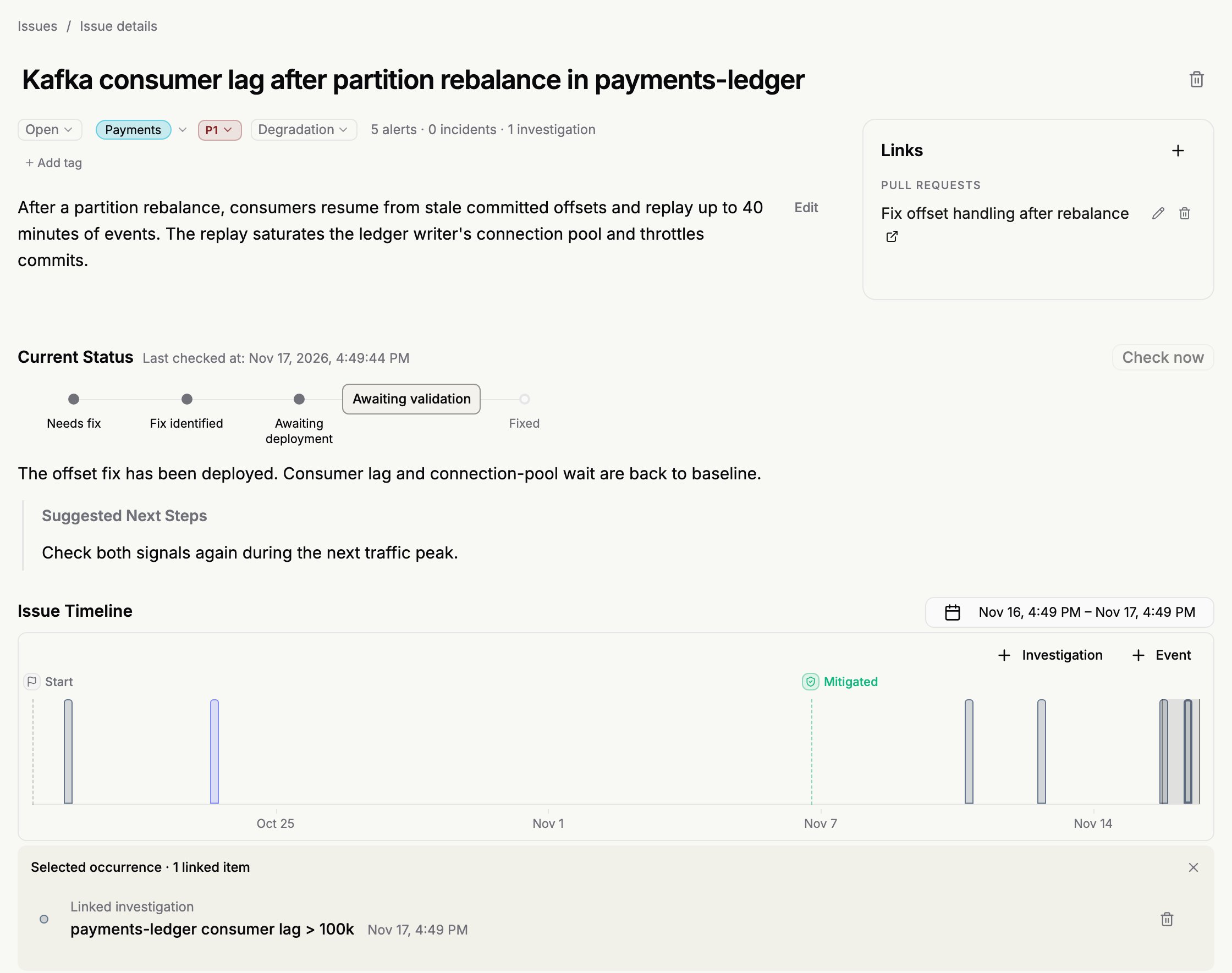
Suppose a Kafka rebalance causes a payments service to replay messages and overwhelm its database connection pool. Investigations into consumer lag and slow database connections can both lead back to that same cause. Resolve can link them to one Issue, so your team can pick up from the earlier findings.- Open the Issue. Follow its link from the alert report in Slack or Microsoft Teams (MS Teams), or from the investigation in Resolve. To see what your team is tracking, open Issues in the sidebar and filter by team.
- Review the evidence. Read Current Status and use the Issue Timeline to open earlier investigations. If an investigation is linked to the wrong Issue, unlink it from the investigation in Resolve.
- Check the fix. Update fix progress as your team works on the problem. After deploying the fix, return to the same Issue to see whether related alerts are still firing. Ask Resolve in the Issue chat, “What evidence do we have that this stayed fixed after the deploy?”
Use Issues in your workflow
- Track a problem from an investigation. Select Track as issue when you want to start tracking it yourself.
- Ask about Issues. Ask in Resolve chat or look up Issues from a connected assistant through the Resolve MCP Server.
- Automate a follow-up. Open Issue Workflow Tasks from the Issues page to schedule a task for open Issues, such as updating a linked ticket.