

Connect from the Resolve UI
- Log in to the ResolveAI app https://app0.resolve.ai
- Open the integrations page https://app0.resolve.ai/integrations
- Click Add Connection
- Name the connection, ex
Production VictoriaLogs - Pick Environments Resolve should query, ex.
productionandstaging - Enter the URL for your VictoriaMetrics instance
- Optional: Use Advanced Settings to specify authentication details
- In VictoriaMetrics, create a read-only API key.
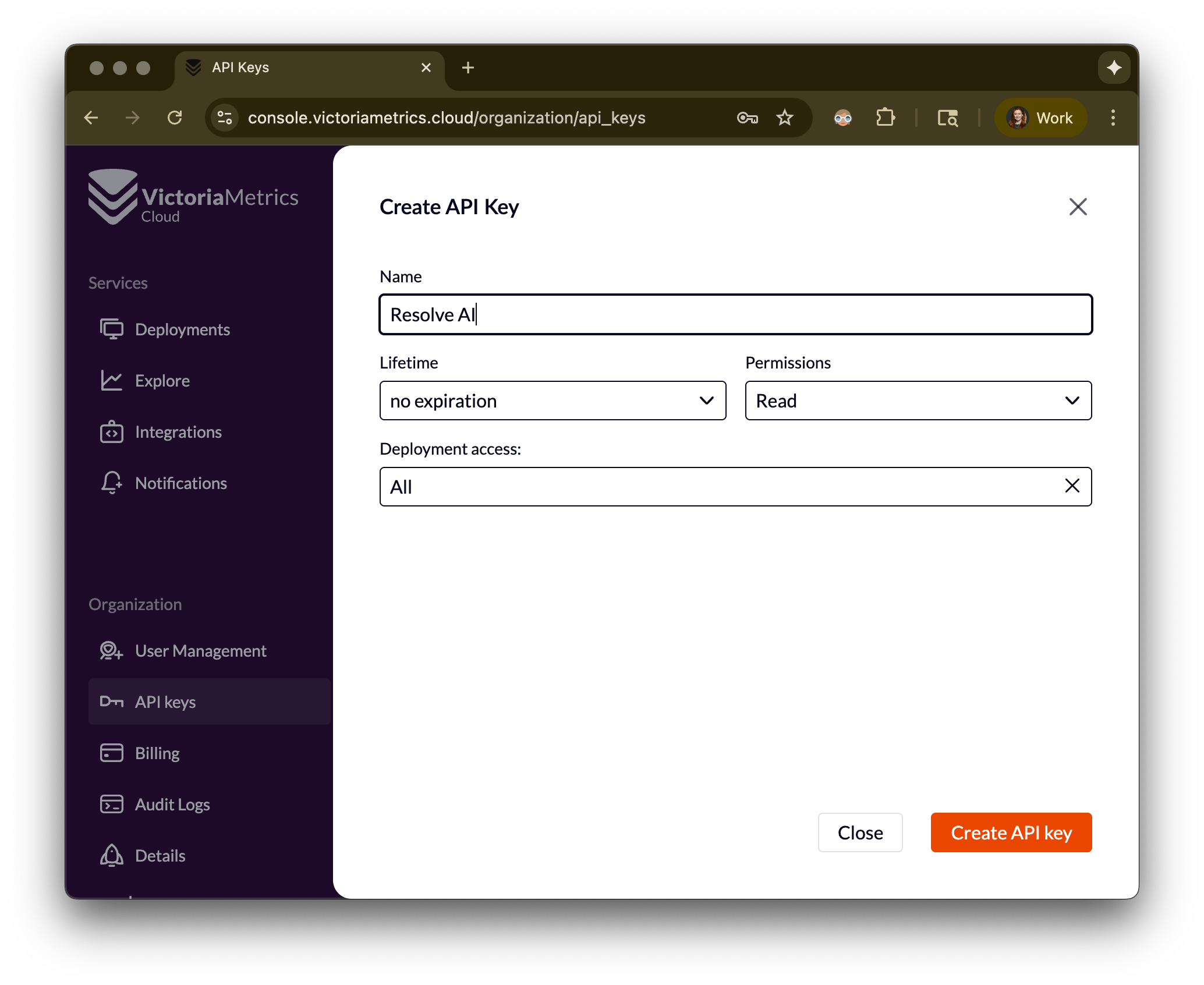
- In ResolveAI open VictoriaLogs, click Edit, and open Advanced Settings.
- Auth Type pick
bearer. - Token enter your API key.
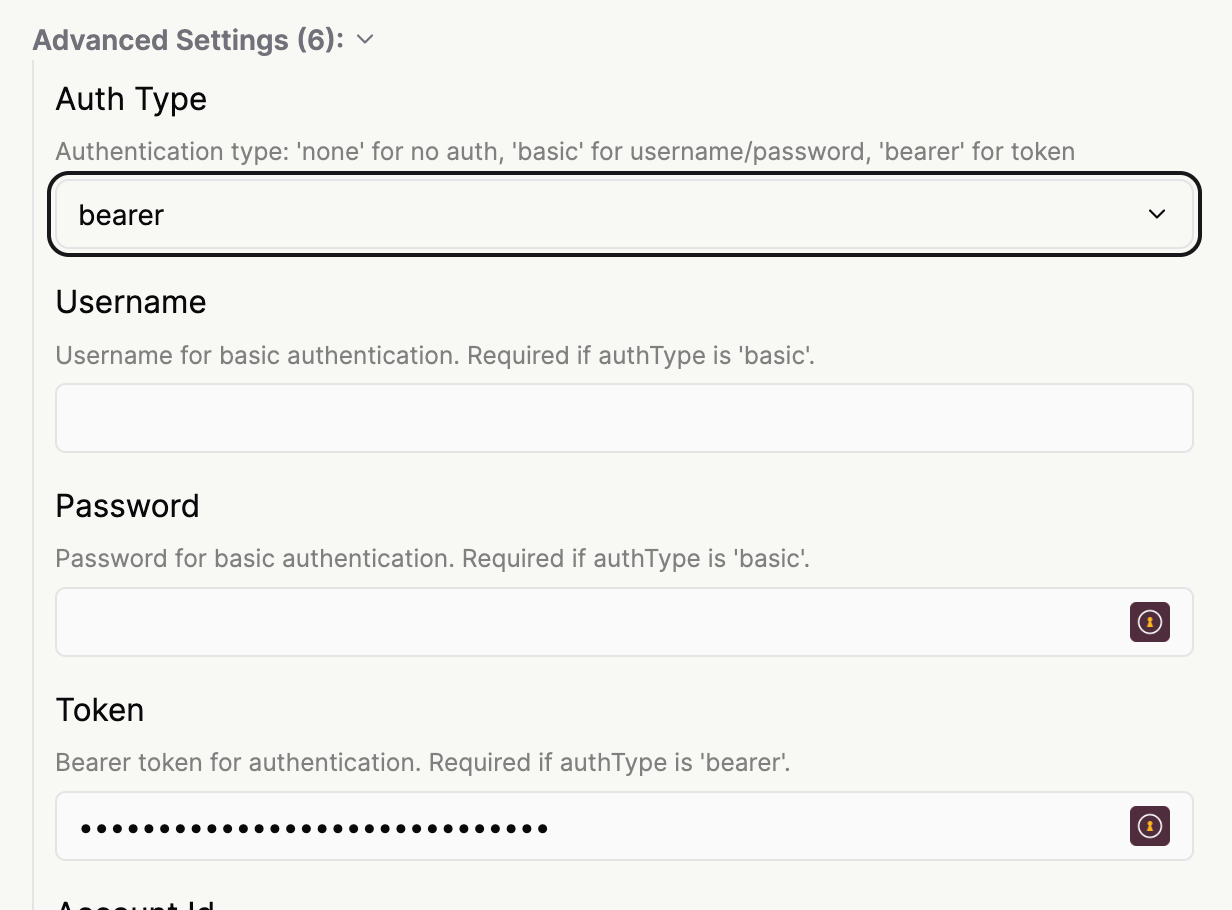
- Click Save at the bottom of the page.
Connect from the Resolve Satellite
Before setting up this integration, ensure the Resolve Satellite is installed in your environment. Below is an example of how to setup the integration in the satellite with a Kubernetes secret (potentially backed by an AWS secret manager or another mechanism) for authentication if you are running VictoriaMetrics Enterprise.1
Configure your integration in the Resolve Satellite
Update your helm values override file with the following information (e.g.: resolve-values.yaml)Install the satellite and apply the values from the yaml file that you have just updated. e.g.: resolve-values.yaml. To find the latest version, visit ResolveAI’s docker hub repository for the helm chart and satellite image.Once your satellite is deployed, we will automatically create an integration instance for you.
resolve-values.yaml
apply config to satellite and redeploy
2
Verify your integration status in ResolveAI
Login to https://app0.resolve.ai/. Go to the integrations page and and select “Prometehus”You should see an automatically created integration based on the provided configuration.
Authentication for VictoriaMetrics Enterprise
1
Create a Kubernetes secret
Create a Kubernetes secret of the following form. Note that the structure of the secret is important. Set the top-level key “token” and put your actual token in the value.To apply the secret run
secret creation
apply secret
2
Use the token in your configuration (as shown above)
Update your helm values override file with the following information (e.g.: resolve-values.yaml)
resolve-values.yaml