Self-Hosted Elasticsearch? If you’re running Elasticsearch in your own infrastructure, you’ll need to use the Resolve Satellite. See the Elasticsearch On-Prem setup guide for instructions.
Create a Service Account Token
To access your Elasticsearch environment a service account token is needed. If you don’t already have a service account, please create one: How to create a service account. Once you have a Service Account to use, you can create an API Key with read-only permissions.Option 1: Create the API Key via the UI [Recommended]
Option 1: Create the API Key via the UI [Recommended]
- In the Elastic UI, open Stack Management > API Keys
- Click on Create API Key
- Enter a Name for your key, ex.
resolve-api-access - In the Control security privileges section, add this block for permissions:
Permissions
Option 2: Create the API Key via the REST API
Option 2: Create the API Key via the REST API
Official Documentation: Access and AuthenticationRun the following command. Please ensure that you replace the following properties:The response will include the encoded token. Please copy it.
- ELASTIC_PASSWORD: This is the password of the elastic user.
- ELASTIC_HOSTNAME: This is the FQDN of the Elastic endpoint.
Response
Note: You must copy the encoded token. You will not be able to retrieve it after creation. Store this token in a secure manner, and do not check into source code. This token will be used in your ResolveAI configuration.
Configure the Elasticsearch Cloud Integration in the UI
1
Login to ResolveAI
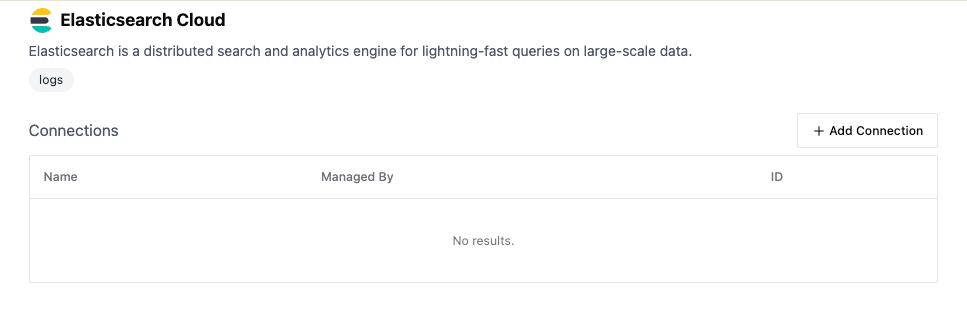
Login to https://app0.resolve.ai/. Go to the integrations page and and select “Elasticsearch Cloud”
2
Add Connection
Click on “Add Connection”. Add a name for the integration and fill in the configuration details. The required field are:
- Url: The endpoint to your Elasticsearch instance (including the port number).
-
Token: The API Key that was generated in the previous step.